When building or upgrading a gaming PC, the biggest performance issue many players overlook is a CPU or GPU bottleneck. Even if you own a powerful graphics card, it may underperform if your processor can’t keep up — and vice-versa. That’s where a gaming bottleneck calculator becomes essential.
A gaming bottleneck calculator helps determine whether your CPU or GPU is holding back performance in games. By analyzing system balance, it helps avoid FPS drops, stutters, and hardware mismatches when building or upgrading a PC.
This guide explains how bottleneck calculators work, what makes one accurate, and why choosing the right tool can protect your FPS and your hardware investment.
✅ What Is a Bottleneck Calculator for Gaming?
A bottleneck calculator estimates how much one component is restricting performance by comparing your:
- CPU model
- GPU model
- Resolution (1080p, 1440p, 4K)
- Game type or workload
The result is shown as a bottleneck percentage, helping gamers understand whether performance is:
| Bottleneck % | Meaning | Result in Games |
| 0–10% | Excellent balance | Smooth FPS, minimal stutter |
| 10–20% | Small imbalance | Mild slowdown in demanding titles |
| 20–40% | Noticeable bottleneck | Performance loss depending on game |
| 40%+ | Serious limitation | Hardware upgrade recommended |
A balanced system ensures GPU runs at full potential without the CPU maxing out first.
also check The Bottleneck Percentage Calculator
🎮 Why Gamers Need a Bottleneck Calculator
A gaming bottleneck tool helps:
✅ Avoid mismatched upgrades
✅ Predict FPS performance before buying hardware
✅ Identify CPU-heavy vs GPU-heavy scenarios
✅ Balance gaming resolution and settings
✅ Save money by upgrading only the limiting part
Example gaming scenarios:
| Game Type | What Matters Most | Which Bottleneck Is More Common? |
| eSports shooters (CS2, Valorant) | CPU single-core speed | CPU bottleneck |
| Open-world (Cyberpunk 2077, Starfield) | GPU power + VRAM | GPU bottleneck |
| Strategy games (Total War) | AI calculations | CPU bottleneck |
| 4K ultra graphics | GPU power | GPU bottleneck |
🧠 What Makes a Bottleneck Calculator Accurate?
The best calculators include:
✅ Up-to-date hardware database (latest RTX/RX GPUs, Intel/Ryzen CPUs)
✅ Real gaming workloads, not just synthetic benchmarks
✅ Game-specific logic
✅ Resolution scaling
✅ Results tailored to different genres
They should also explain why bottlenecks occur — not only give a percentage.
🧩 Example Bottleneck Results (Realistic Estimates)
| CPU | GPU | Resolution | Estimated Bottleneck | Notes |
| Ryzen 5 5600 | RTX 4070 | 1440p | ~6% | Very balanced gaming build |
| i5-10400F | RTX 4060 Ti | 1080p | ~18% (CPU-bound) | Low-res shooters may stutter |
| Ryzen 7 7800X3D | RTX 3060 | 1080p | ~8% (GPU-bound) | GPU upgrade improves FPS |
| i9-14900K | RTX 4090 | 4K | ~3% (GPU-bound) | Perfect for 4K, CPU rarely limited |
⚠️ These percentages are estimates for illustration.
🔍 Methods a Bottleneck Calculator Should Use
Here’s how a proper calculator should determine system balance:
1️⃣ CPU vs GPU performance index
(Benchmark score comparison)
2️⃣ Resolution scaling
Lower res → more CPU bottlenecks
Higher res → more GPU bottlenecks
3️⃣ Game engine behavior
E.g., Valorant vs Cyberpunk require different resources
4️⃣ Hardware compatibility match
PCIe lanes, VRAM size, RAM speed influence FPS
🚫 Why Some Bottleneck Calculators Are Not Reliable
Common issues with inaccurate tools:
| Problem | Impact |
| Outdated hardware database | New GPUs/CPUs missing |
| Only synthetic benchmarks | Doesn’t reflect real gameplay |
| No resolution settings | Wrong results for 4K vs 1080p |
| Ignores RAM/Storage | Hidden bottlenecks not reported |
| Generic percentages | No actionable insights |
Bad data = bad upgrade decisions.
🧪 How to Test Gaming Bottlenecks Yourself
Checklist for accurate testing:
- Track CPU & GPU usage using MSI Afterburner / RTSS
- Monitor frame times (spikes = bottleneck)
- Compare performance across different resolutions
- Check temps for thermal throttling
Rules:
🎯 CPU bottleneck → CPU 100% / GPU underutilized
🎯 GPU bottleneck → GPU 100% / CPU relaxed
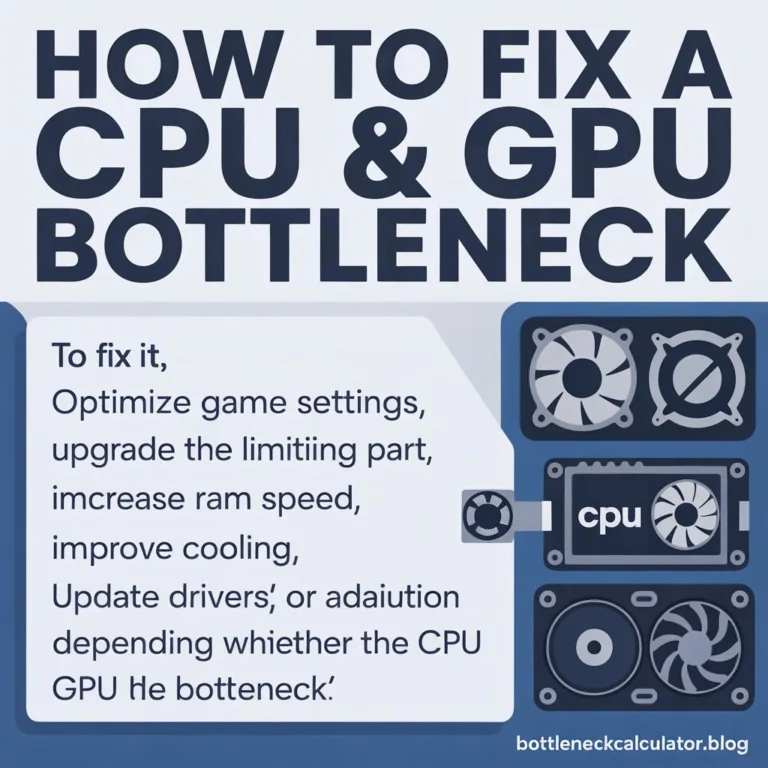
🔧 How to Fix a Gaming Bottleneck
| Bottleneck Type | Fixes |
| CPU Bottleneck | Reduce background apps, lower draw distance/shadows, upgrade CPU/RAM |
| GPU Bottleneck | Lower resolution/RT, enable DLSS/FSR, upgrade GPU |
| RAM Bottleneck | 16–32GB dual-channel memory, faster MHz |
| Storage Bottleneck | SSD/NVMe for faster game load + streaming |
Sometimes settings tweaks are enough ✅
📈 Future-Proofing Your System
Smart upgrade rules:
- Pair CPU & GPU from the same era
- For 1080p → stronger CPU
- For 4K → stronger GPU
- Avoid extreme mismatches
(e.g., RTX 4090 + 4-core CPU)
Buying balance = better FPS per dollar.
❓ FAQs
What is the best bottleneck calculator for gaming?
The best gaming bottleneck tool provides accurate CPU-GPU balance testing based on real performance data and updated hardware databases.
Can a bottleneck calculator predict gaming FPS?
Yes — high-quality tools give useful estimates, especially when resolution and workload are considered.
How much bottleneck is normal in gaming?
Under 10–15% is completely normal and rarely hurts gameplay.
Do bottlenecks cause stutter and lag?
Yes — CPU bottlenecks often result in frame drops and inconsistent frame pacing.
Can RAM affect CPU/GPU bottlenecks?
Absolutely — low-speed or insufficient RAM can restrict both components.
Is 4K gaming more GPU bottlenecked?
Yes — high-resolution textures and ray tracing push the GPU hardest.
How often should I check for bottlenecks?
Whenever you upgrade a part or play new, more demanding games.
✅ Final Recommendation
To get the most accurate performance insight, use a bottleneck calculator designed specifically for gaming, with fresh data and resolution-aware logic.
🎯 Try the Bottleneck Calculator
✅ Analyze your gaming system
✅ Instantly detect CPU or GPU performance limits
✅ Improve FPS with actionable recommendations
🔗 The Bottleneck Calculator by BottleneckCalculator.blog
Check your PC’s gaming bottleneck now — fast, free, and accurate.