Is your gaming PC not performing the way it should? Experiencing stuttering, low FPS, or lag even though you have a powerful graphics card? The culprit might be a bottleneck.
Our free Bottleneck Calculator helps you quickly check whether your CPU and GPU are balanced. Just enter your hardware details, and you’ll see the bottleneck percentage along with upgrade suggestions.
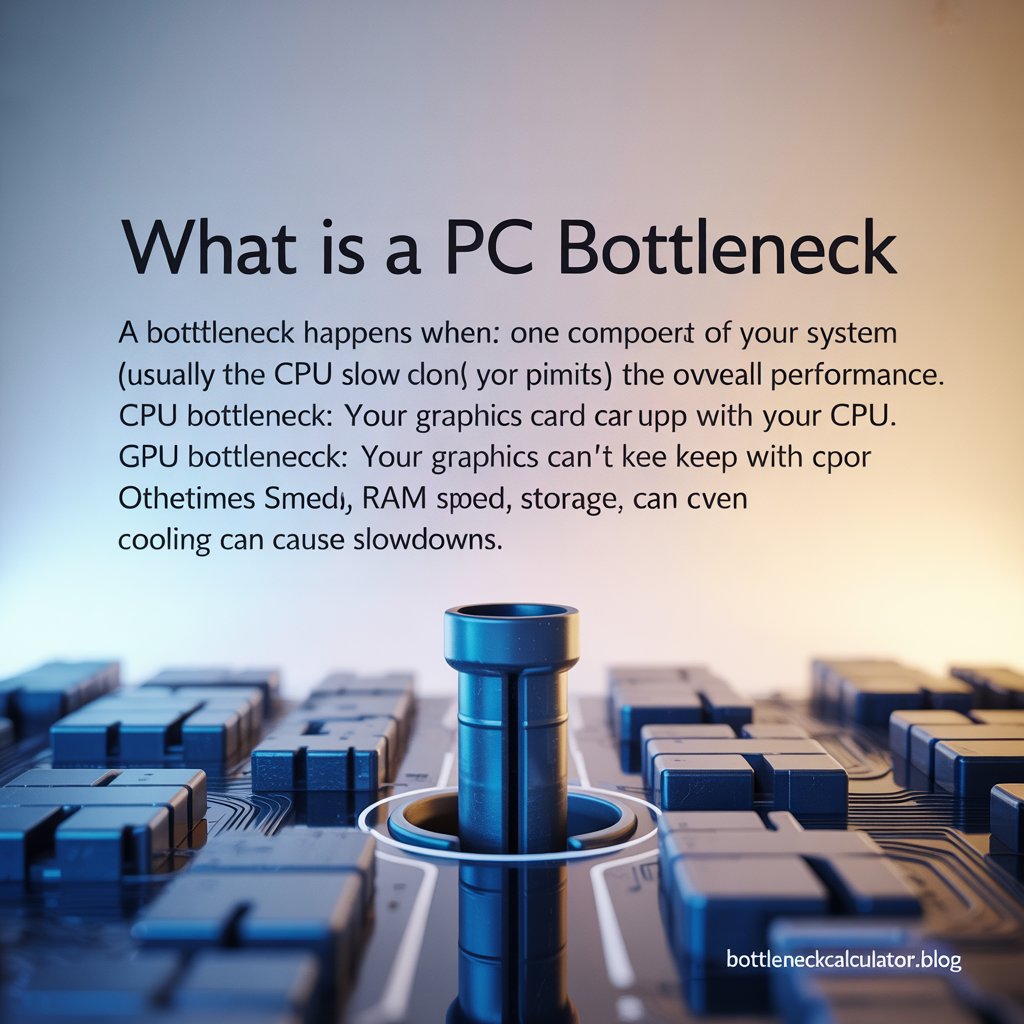
What is a PC Bottleneck?
A bottleneck happens when one component of your system (usually the CPU or GPU) limits the overall performance.
- CPU Bottleneck: Your processor is too slow compared to your graphics card.
- GPU Bottleneck: Your graphics card can’t keep up with your CPU.
- Other Bottlenecks: Sometimes RAM speed, storage, or even cooling can cause slowdowns.
Think of it like traffic: if the road narrows into a single lane, it doesn’t matter how many cars are behind—it all slows down at the narrow point.
How Does a Bottleneck Calculator Work?
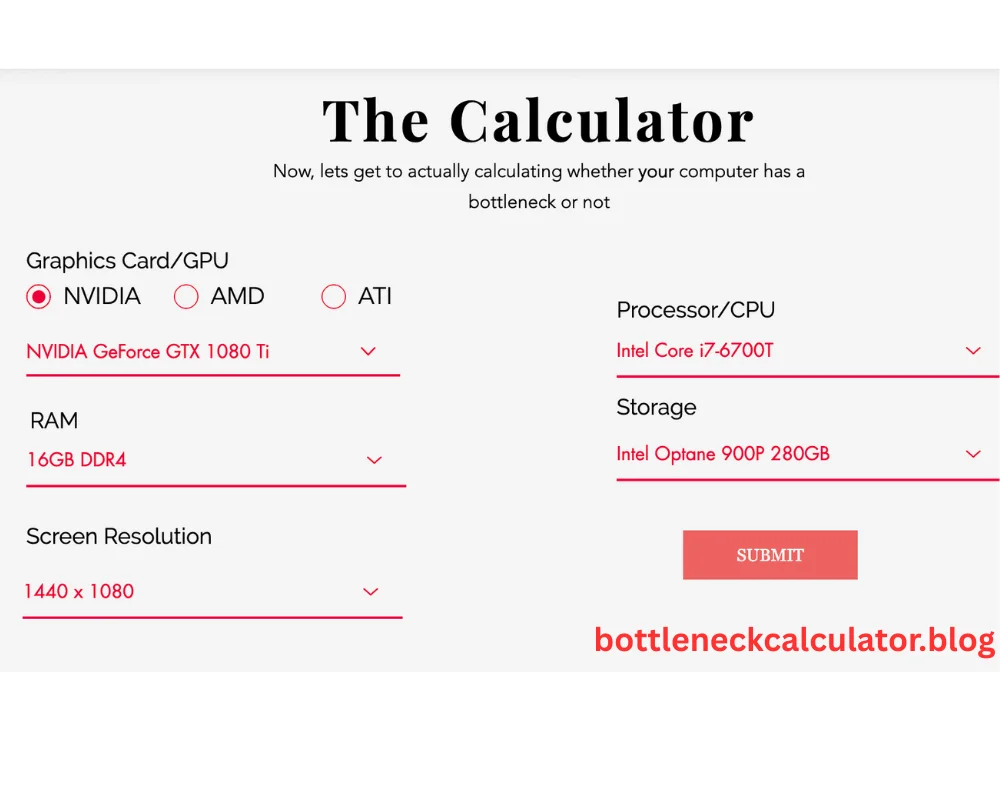
Our calculator estimates performance balance by comparing:
- CPU performance (single-core & multi-core scores)
- GPU performance (rendering power, VRAM, architecture)
- Resolution & settings (1080p, 1440p, 4K)
- Game/usage scenario (gaming, streaming, editing)
It outputs a bottleneck percentage that shows how much one component limits the other.
⚠️ Note: Bottleneck calculators are estimates. Real-world performance also depends on drivers, cooling, background apps, and game optimization.
Bottleneck Calculator
Find out if your system components are balanced
CPU
GPU
Resolution
Higher options increase GPU load and may reduce CPU bottlenecks.
RAM
More RAM allows for smoother multitasking and can help with memory-intensive applications.
Storage
Faster storage reduces loading times and improves system responsiveness.
Purpose
Different use cases prioritize different components for optimal performance.
Results
Performance Analysis
Recommendations
Why Bottlenecks Matter in Gaming
A small bottleneck (5–10%) is normal and often unnoticeable. But large bottlenecks can cause:
- FPS drops (your system can’t keep a stable frame rate)
- Stuttering & lag (CPU can’t feed data fast enough to GPU)
- Low hardware utilization (GPU stuck at 50% while CPU is maxed out)
- Inconsistent performance across games
👉 Example: In esports titles (Valorant, CS2, Fortnite), a CPU bottleneck is common because these games rely heavily on high single-core CPU performance. In contrast, modern AAA games with ray tracing tend to GPU bottleneck.
Types of PC Bottlenecks
1. CPU Bottleneck
- CPU usage at 100%, GPU below 80%
- Common in high-FPS gaming, streaming, and open-world games with heavy AI/physics
- Fix: Upgrade CPU, optimize background tasks, enable DLSS/FSR
2. GPU Bottleneck
- GPU usage at 100%, CPU below 60%
- Common in 4K gaming or ultra graphics settings
- Fix: Upgrade GPU, lower resolution or graphics settings
3. RAM Bottleneck
- Not enough RAM (e.g., 8GB in 2025 is too low)
- RAM speed mismatch with CPU (e.g., DDR4 2400 MHz vs Ryzen CPU)
- Fix: Upgrade to 16–32GB, use faster RAM
4. Storage Bottleneck
- Games installed on HDD instead of SSD → slow load times
- Fix: Move games to SSD/NVMe
5. Power Supply & Thermal Bottleneck
- Weak PSU → GPU/CPU can’t draw enough power
- Poor cooling → thermal throttling reduces performance
Also Read About: Best Bottleneck Calculator for Gaming (2025 Guide)
How to Check If Your PC Has a Bottleneck
✅ Method 1: Use Our Bottleneck Calculator
Enter your CPU, GPU, and resolution → get instant bottleneck %
✅ Method 2: Check with Monitoring Tools
- Use Task Manager, MSI Afterburner, or HWMonitor
- If CPU is maxed out but GPU isn’t → CPU bottleneck
- If GPU is maxed out but CPU isn’t → GPU bottleneck
✅ Method 3: Look for Performance Symptoms
- FPS drops in certain games
- Stuttering in cutscenes/open world
- High temps and fan noise during gaming
How to Fix a Bottleneck
- Upgrade hardware:
- CPU bottleneck → stronger CPU with more cores/threads
- GPU bottleneck → newer GPU with higher VRAM & clock speed
- CPU bottleneck → stronger CPU with more cores/threads
- Optimize settings:
- Lower CPU-heavy settings (shadows, draw distance)
- Lower GPU-heavy settings (resolution, ray tracing, textures)
- Lower CPU-heavy settings (shadows, draw distance)
- Enable new technologies:
- Use DLSS/FSR/XeSS to reduce GPU load
- Use resolution scaling for balance
- Use DLSS/FSR/XeSS to reduce GPU load
- Other fixes:
- Upgrade RAM speed/size
- Switch HDD → SSD/NVMe
- Improve cooling to avoid throttling
- Upgrade RAM speed/size
Also Read: PC Bottleneck Calculator – Check CPU & GPU Balance Instantly
FAQs About Bottleneck Calculators
🔹 What is a bottleneck in a computer system?
A bottleneck happens when one component of your PC (usually the CPU or GPU) limits the performance of the whole system. For example, if your CPU is too weak to feed data fast enough to a powerful GPU, you’ll see lower FPS or stuttering in games.
🔹 Can my graphics card be a bottleneck?
Yes. If your GPU is running at 100% usage while your CPU is underused, your graphics card is the limiting factor. This usually happens at higher resolutions (1440p, 4K) or with ultra graphics settings.
🔹 Can the CPU be a bottleneck?
Definitely. A CPU bottleneck occurs when your processor can’t keep up with the demands of your GPU. This is most common in fast-paced esports games (Valorant, CS2, Fortnite) or with high refresh rate monitors (144Hz, 240Hz).
🔹 How can I tell if my PC has a bottleneck?
You can:
- Use our Bottleneck Calculator for a quick check.
- Monitor performance with Task Manager or MSI Afterburner.
👉 If your CPU is maxed at 100% while your GPU sits below 70%, you’re CPU bottlenecked.
🔹 How does the Bottleneck Calculator work?
Our calculator compares your CPU and GPU performance scores, resolution, and workload. It then estimates the percentage imbalance to show which part of your PC is holding back performance.
🔹 Are bottleneck calculators completely accurate?
Not 100%. They provide an estimate. Real-world performance also depends on things like game optimization, drivers, RAM speed, and cooling. However, they’re a great starting point for planning upgrades.
🔹 Does the Bottleneck Calculator consider the latest games?
Yes. Our calculator uses data from modern CPU & GPU benchmarks that reflect today’s popular titles. Still, remember that different games stress hardware differently—esports vs AAA games may show different results.
🔹 Can RAM or storage cause a bottleneck?
Yes. Insufficient or slow RAM can bottleneck your CPU, and using an HDD instead of an SSD/NVMe can cause slow load times. For modern gaming, 16–32GB of fast RAM and an SSD are strongly recommended.
🔹 Do different games cause different bottlenecks?
Absolutely. Some games are CPU-heavy (RTS, open-world, esports), while others are GPU-heavy (AAA titles with ray tracing). That’s why a PC might be CPU-bottlenecked in one game and GPU-bottlenecked in another.
🔹 Are the results different for laptops and desktops?
Yes. Laptops often throttle due to heat and power limits, which can make bottlenecks more noticeable compared to desktops. That’s why the same CPU/GPU combo can perform differently on a laptop vs a desktop.
🔹 Why did my bottleneck result change compared to last month?
Driver updates, new game releases, or benchmark revisions can change how balanced your system looks. Even a Windows update or BIOS update can shift performance results slightly.
🔹 What can I do if my PC has a bottleneck?
- Upgrade the limiting component (CPU, GPU, RAM, storage).
- Adjust in-game settings to reduce the load.
- Use DLSS/FSR to ease GPU strain or cap FPS to reduce CPU stress.
🔹 Does overclocking help with bottlenecks?
Yes, to a degree. Overclocking your CPU or GPU can reduce bottlenecks, but results vary and there are risks (heat, instability). Proper cooling is essential if you overclock.
🔹 Can software cause a bottleneck?
Yes. Background programs (like Chrome, Discord, OBS) can use CPU/RAM and contribute to bottlenecks. That’s why closing unnecessary apps before gaming can boost performance.
🔹 Is 10% or 20% bottleneck bad?
Not at all. A bottleneck under 20% is usually not noticeable in real-world gaming. You should only consider upgrading if the bottleneck exceeds 30–40%.
🔹 Which part should I upgrade first to reduce a bottleneck?
It depends:
- CPU bottleneck → Upgrade to a higher clock speed or more cores.
- GPU bottleneck → Upgrade graphics card first.
- RAM/storage bottleneck → Cheaper upgrade (RAM/SSD) before big investments.
🔹 Can dual-channel RAM reduce bottlenecks?
Yes. Running RAM in dual-channel improves bandwidth, which helps reduce CPU bottlenecks, especially in Ryzen systems.
🔹 How does refresh rate (144Hz/240Hz) affect bottlenecking?
High-refresh monitors demand higher FPS. If your CPU can’t keep up, you’ll notice CPU bottlenecks more at 144Hz/240Hz than at 60Hz.
🔹 Do background apps cause bottlenecks?
Yes. Programs like Chrome tabs, Discord, OBS, and antivirus can use CPU and RAM, leading to bottlenecks during gaming. Always close unused apps before heavy workloads.
🔹 Are bottlenecks different for gaming vs productivity?
Yes. Video editing and 3D rendering often cause GPU bottlenecks, while tasks like compiling code or running virtual machines tend to cause CPU bottlenecks.
🔹 Does Resizable BAR or DirectStorage help with bottlenecks?
Yes. Resizable BAR can improve GPU efficiency, while DirectStorage reduces storage bottlenecks in games by speeding up asset loading from SSDs.
Try the Bottleneck Calculator Now
Don’t let one part of your system slow everything down.
👉 Enter your CPU & GPU below and check for bottlenecks instantly.