Is your gaming PC not delivering the FPS you expected? Do you notice stuttering, lag, or low utilization of your hardware? The problem may be a CPU GPU bottleneck.
Our free Bottleneck Calculator CPU GPU helps you quickly check whether your processor and graphics card are working in balance. Just enter your CPU and GPU details, and the calculator will estimate your bottleneck percentage — so you’ll know if your system is optimized or needs an upgrade.
What is a CPU GPU Bottleneck?
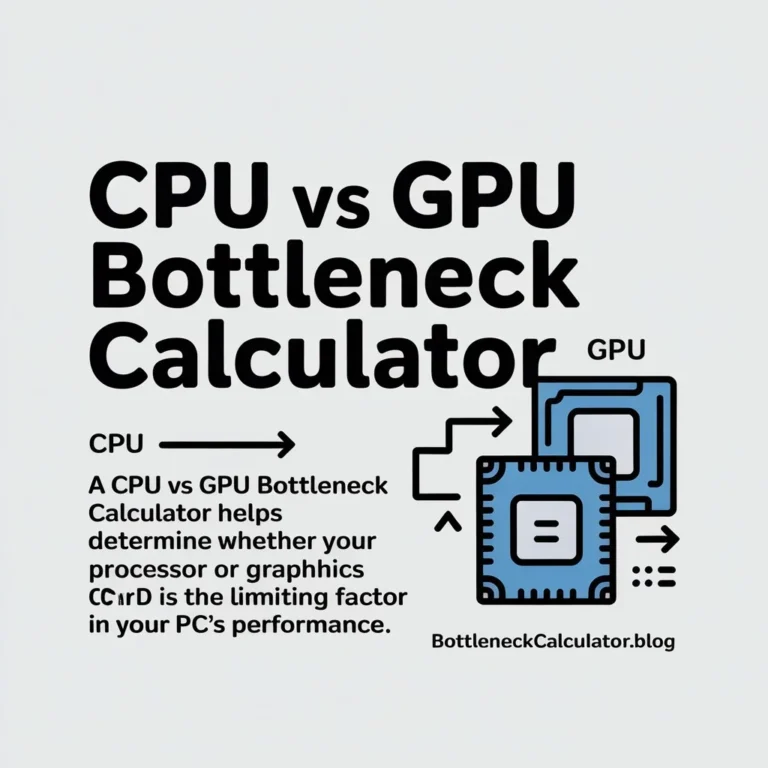
A bottleneck happens when one part of your system holds back the performance of another. In most PCs, this usually involves the CPU (processor) or the GPU (graphics card).
CPU Bottleneck Explained
- Occurs when the processor cannot keep up with the graphics card.
- The CPU is stuck at 100% usage, while the GPU is underutilized.
- Common in esports titles like Valorant, CS2, or Fortnite that rely heavily on single-core CPU speed.
GPU Bottleneck Explained
- Happens when the graphics card becomes the limiting factor.
- GPU usage is maxed out at 100%, while CPU usage remains low.
- Common in AAA titles at ultra graphics settings or 4K resolution.
How CPU & GPU Work Together in Performance
Think of it like a car: the CPU is the driver, giving instructions, while the GPU is the engine that executes those commands. If the driver is too slow, the engine won’t reach its full power. If the engine is weak, the car can’t run at top speed. Both need to be balanced for smooth performance.
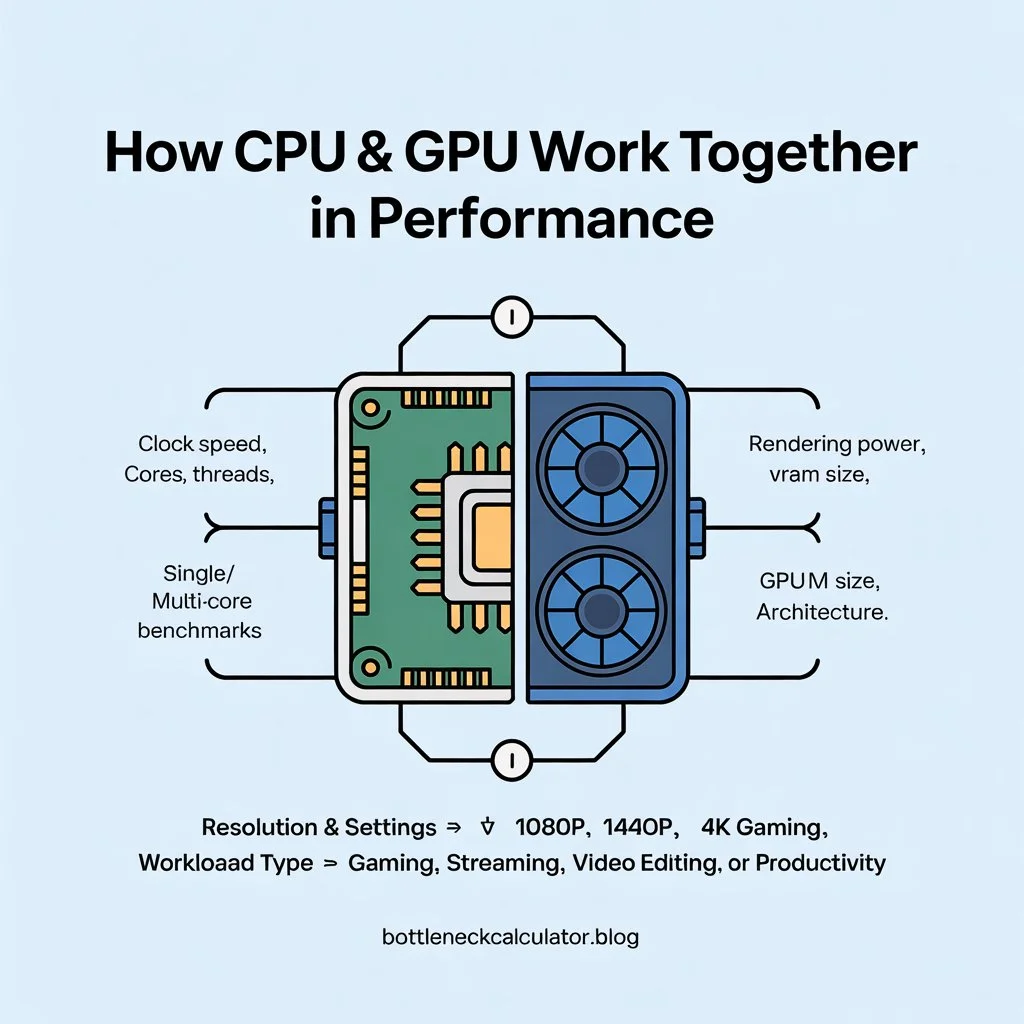
How Does a CPU GPU Bottleneck Calculator Work?
A CPU GPU Bottleneck Calculator estimates whether your hardware components are well-matched by analyzing:
- CPU performance → clock speed, cores, threads, single/multi-core benchmarks.
- GPU performance → rendering power, VRAM size, architecture.
- Resolution & settings → 1080p, 1440p, 4K gaming.
- Workload type → gaming, streaming, video editing, or productivity.
The calculator outputs a bottleneck percentage:
- 0–10% bottleneck → Excellent balance, no major issues.
- 10–20% bottleneck → Acceptable, rarely noticeable.
- 20–40% bottleneck → Performance impact may be visible.
- 40%+ bottleneck → Significant mismatch, upgrade recommended.
⚠️ Note: These results are estimates. Real-world performance also depends on drivers, cooling, RAM speed, and game optimization.
Also Check: GPU CPU Bottleneck Calculator – Check PC Gaming Performance
When Should You Use a Bottleneck Calculator CPU GPU?
You should check your CPU and GPU balance if you are:
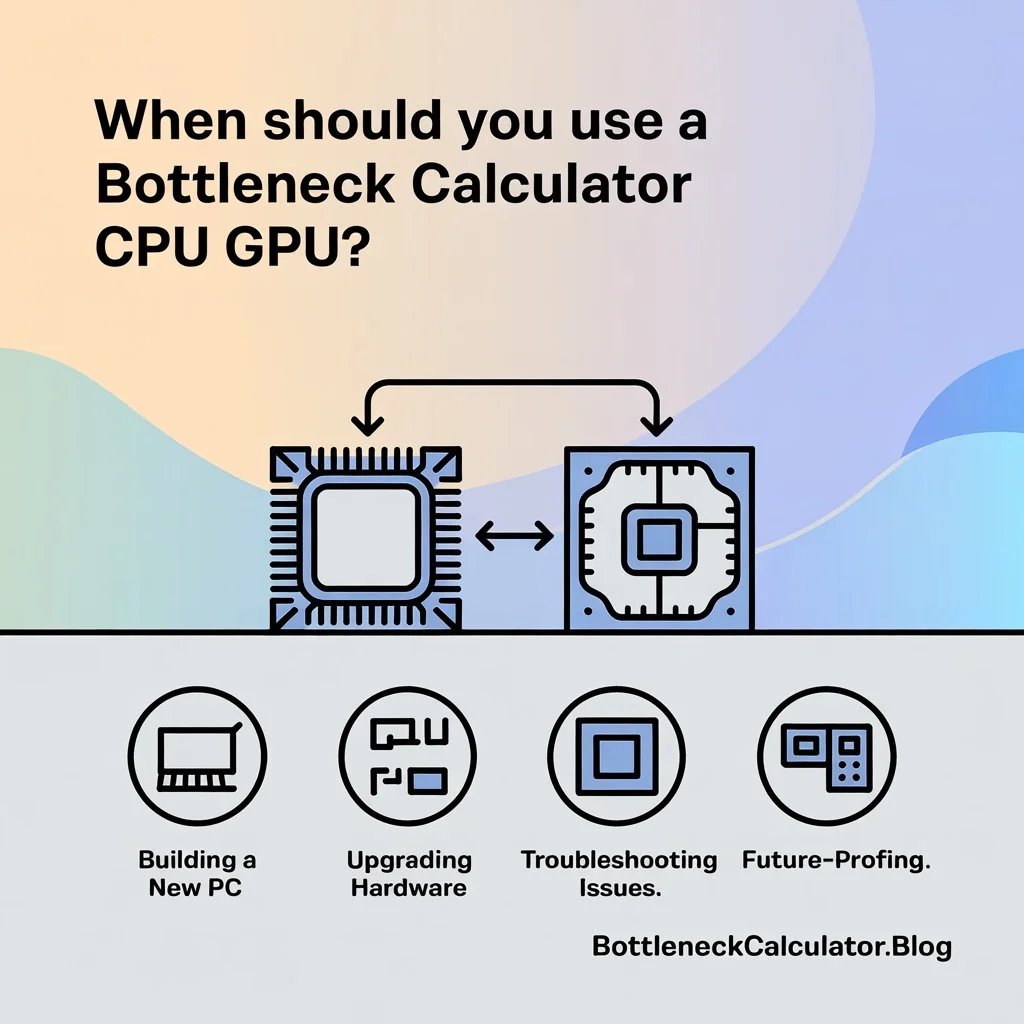
- Building a new PC – ensure your chosen parts are compatible.
- Upgrading hardware – avoid pairing a high-end GPU with a weak CPU or vice versa.
- Troubleshooting issues – diagnosing FPS drops, stuttering, or low hardware utilization.
- Future-proofing – planning upgrades that will last several years.
Factors That Affect CPU & GPU Bottlenecks
CPU Generation & Core Count
Newer CPUs with higher clock speeds and more cores handle modern games better. Older CPUs often bottleneck high-end GPUs.
GPU Power & VRAM
High-resolution gaming (1440p, 4K) needs more GPU power and memory. A weak GPU will limit FPS no matter how strong the CPU is.
RAM Speed & Storage
Slow RAM or insufficient capacity (below 16GB) can cause CPU slowdowns. Similarly, HDDs instead of SSDs create storage bottlenecks.
Game Optimization Differences
Some games are CPU-heavy (open-world, simulation), while others are GPU-heavy (AAA ray-traced titles). That’s why bottleneck percentage varies across different workloads.
How to Fix a CPU GPU Bottleneck
If your bottleneck calculator shows imbalance, here are solutions:
- Upgrade Hardware
- CPU bottleneck → Choose a faster processor with higher IPC (instructions per cycle).
- GPU bottleneck → Upgrade to a newer graphics card with more VRAM and faster cores.
- CPU bottleneck → Choose a faster processor with higher IPC (instructions per cycle).
- Optimize In-Game Settings
- Reduce CPU-heavy settings → shadows, draw distance, crowd density.
- Reduce GPU-heavy settings → resolution, ray tracing, anti-aliasing.
- Reduce CPU-heavy settings → shadows, draw distance, crowd density.
- Use Technologies
- Enable DLSS, FSR, or XeSS to reduce GPU load.
- Cap FPS to reduce CPU strain in esports titles.
- Enable DLSS, FSR, or XeSS to reduce GPU load.
- Other Fixes
- Upgrade to dual-channel, faster RAM.
- Switch from HDD to SSD/NVMe.
- Improve cooling to prevent CPU/GPU throttling.
- Upgrade to dual-channel, faster RAM.
Bottleneck Calculator CPU GPU vs Other Bottleneck Tools
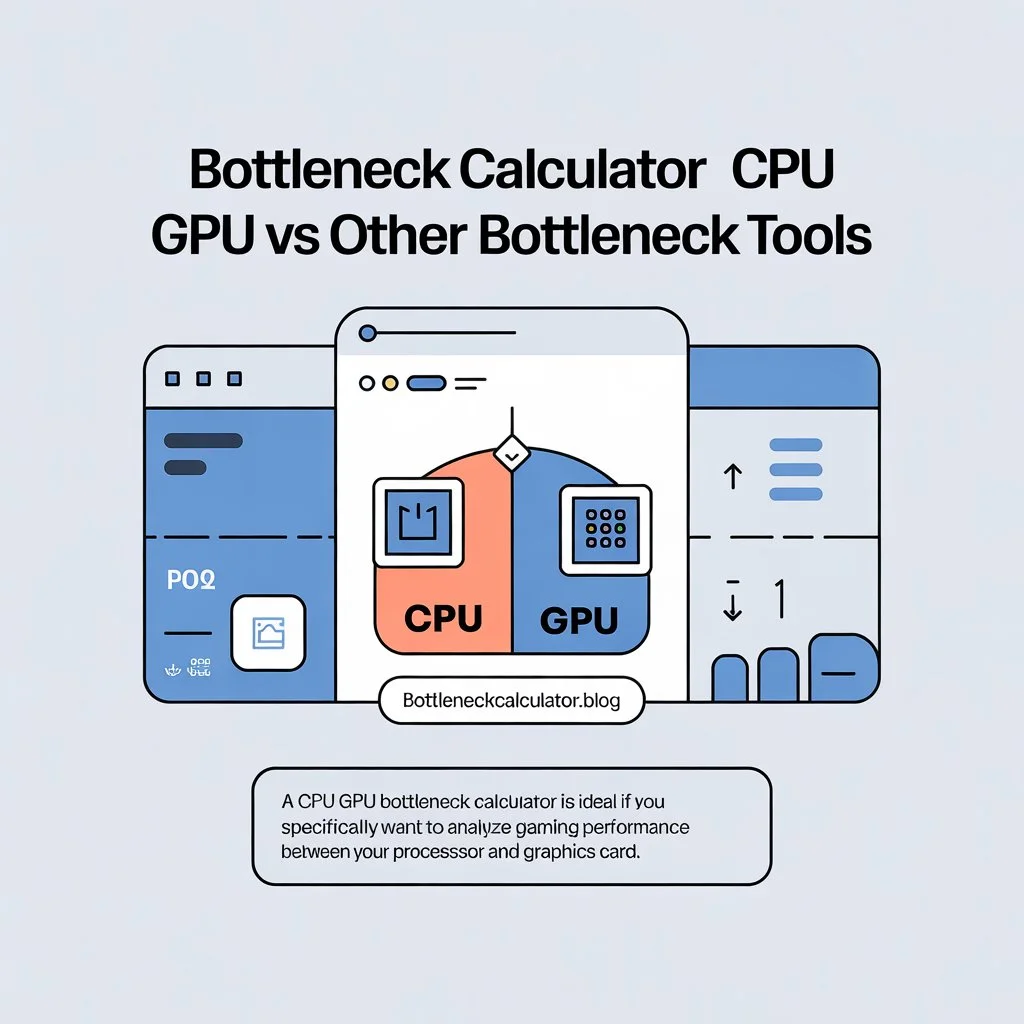
- General Bottleneck Calculators → Show broad compatibility but less detailed.
- GPU-only Calculators → Focus only on graphics cards, ignoring CPU limits.
- PC Bottleneck Calculators → Include CPU, GPU, RAM, and storage balance.
👉 A CPU GPU Bottleneck Calculator is ideal if you specifically want to analyze gaming performance balance between your processor and graphics card.
FAQs
What does a CPU GPU bottleneck mean?
It means your CPU or GPU is limiting the system’s overall performance.
How do I check CPU GPU bottlenecks?
Use a bottleneck calculator, monitor usage in Task Manager/MSI Afterburner, or test in games.
Is a CPU GPU bottleneck calculator accurate?
It’s an estimate. Real results vary depending on drivers, cooling, and game optimization.
Can overclocking fix a CPU GPU bottleneck?
Yes, but only partially. Overclocking improves performance but won’t eliminate big mismatches.
Can RAM or storage cause a CPU GPU bottleneck?
Yes. Slow or insufficient RAM and HDDs can limit performance even if CPU & GPU are strong.
Do different games have different CPU/GPU bottlenecks?
Absolutely. Esports games are usually CPU-limited, while AAA games with ray tracing are GPU-limited.
What percentage bottleneck is acceptable?
Anything under 20% is fine. Above 30–40% may require upgrades.
Is a 10% bottleneck bad?
No, a 10% bottleneck is normal and rarely noticeable.
Conclusion
Balancing your CPU and GPU is essential for smooth gaming and high performance. A small bottleneck is fine, but large mismatches waste potential and cause stuttering.
👉 Use our free CPU GPU Bottleneck Calculator today to test your system and find the perfect hardware balance!