Is your computer not performing as fast as expected, even with good hardware?
If your games lag, FPS drops suddenly, or your system feels unbalanced, you might be dealing with a computer bottleneck.
Our Computer Bottleneck Calculator helps you find the weak link in your PC setup. Just enter your CPU, GPU, RAM, and resolution, and the calculator will show which component limits performance — plus how to fix it.
What Is a Computer Bottleneck?
A computer bottleneck occurs when one hardware component slows down the overall system performance.
Even if most of your PC parts are powerful, a single weak component (like an old CPU or slow RAM) can hold everything back.
Common Causes of PC Bottlenecks
- CPU bottleneck: Processor can’t keep up with GPU.
- GPU bottleneck: Graphics card is the limiting factor.
- RAM bottleneck: Not enough or too slow memory.
- Storage bottleneck: Using HDD instead of SSD slows game loading.
- Power/Thermal bottlenecks: Weak PSU or overheating throttles performance.
Think of it like a race: the slowest runner determines the team’s speed.
How the Computer Bottleneck Calculator Works?
Our calculator estimates system balance by analyzing:
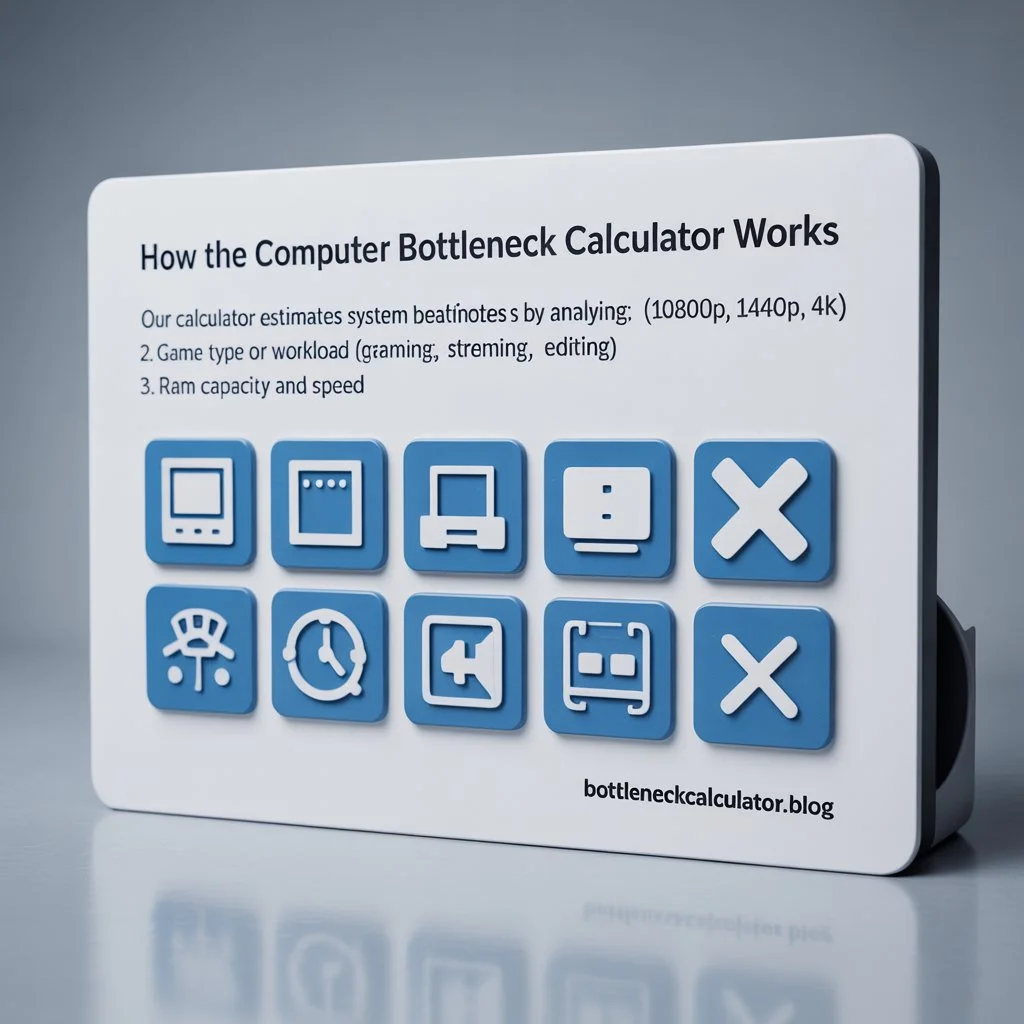
- CPU and GPU performance scores
- Resolution and graphics settings (1080p, 1440p, 4K)
- Game type or workload (gaming, streaming, editing)
- RAM capacity and speed
After analysis, you’ll see a bottleneck percentage, showing how much one component limits another.
👉 Example:
If your CPU is 10–15% slower than your GPU’s processing demand, your setup has a 10–15% CPU bottleneck.
✅ Tip: A bottleneck under 20% is considered healthy and won’t impact most games.
Types of Computer Bottlenecks
CPU Bottleneck
Occurs when the CPU can’t process data quickly enough for the GPU.
Symptoms:
- High CPU usage (90–100%)
- Low GPU usage (50–70%)
- FPS drops in CPU-heavy games (Valorant, CS2, GTA V)
Fixes:
- Upgrade to a faster CPU
- Close background tasks
- Lower CPU-heavy settings (draw distance, shadows)
GPU Bottleneck
Occurs when the GPU is maxed out while the CPU is underutilized.
Symptoms:
- GPU usage near 100%
- CPU usage around 50–70%
- Lag or FPS drops at high resolutions (1440p/4K)
Fixes:
- Upgrade your GPU
- Lower graphics quality or resolution
- Use DLSS/FSR to reduce GPU strain
RAM & Storage Bottlenecks
- Low RAM (e.g., 8GB) can cause stutters and slow data transfer between CPU and GPU.
- Slow storage (HDD) increases loading and texture pop-ins in modern games.
Fixes:
- Upgrade to 16–32GB RAM
- Switch from HDD → SSD or NVMe
Thermal & Power Bottlenecks
Overheating or underpowered PSUs can cause thermal throttling, reducing CPU/GPU performance.
Ensure you have proper cooling, clean airflow, and a reliable PSU.
Also Check: PC-Builds Bottleneck Calculator – Test Your CPU & GPU Balance
How to Check for a Bottleneck Without a Calculator
If you prefer manual testing:
- Open Task Manager or MSI Afterburner
- Run a game or benchmark
- Watch usage levels:
- CPU 100% + GPU < 80% → CPU bottleneck
- GPU 100% + CPU < 70% → GPU bottleneck
- CPU 100% + GPU < 80% → CPU bottleneck
- Note FPS drops, stutters, or lag spikes
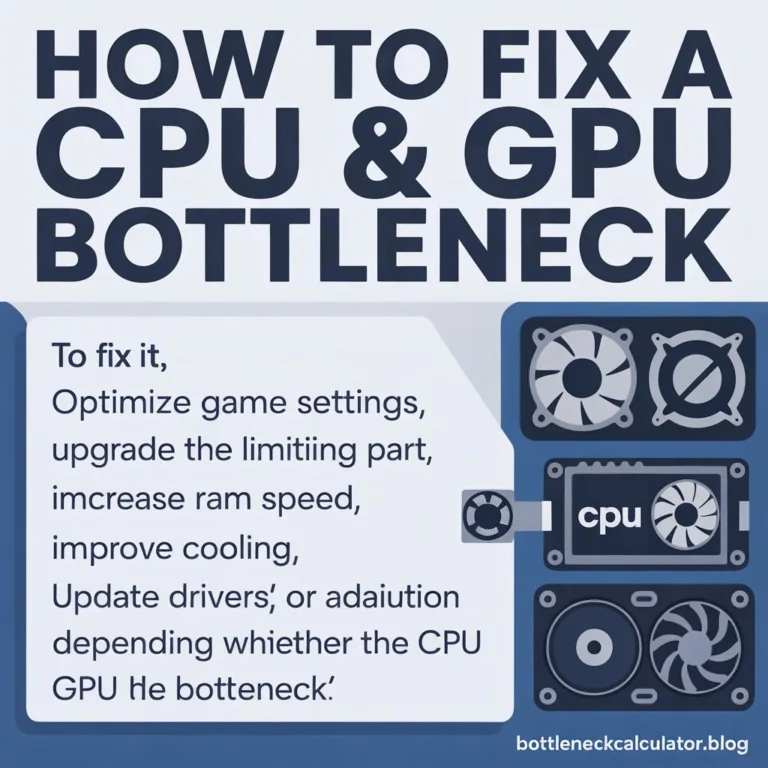
How to Fix a Computer Bottleneck?
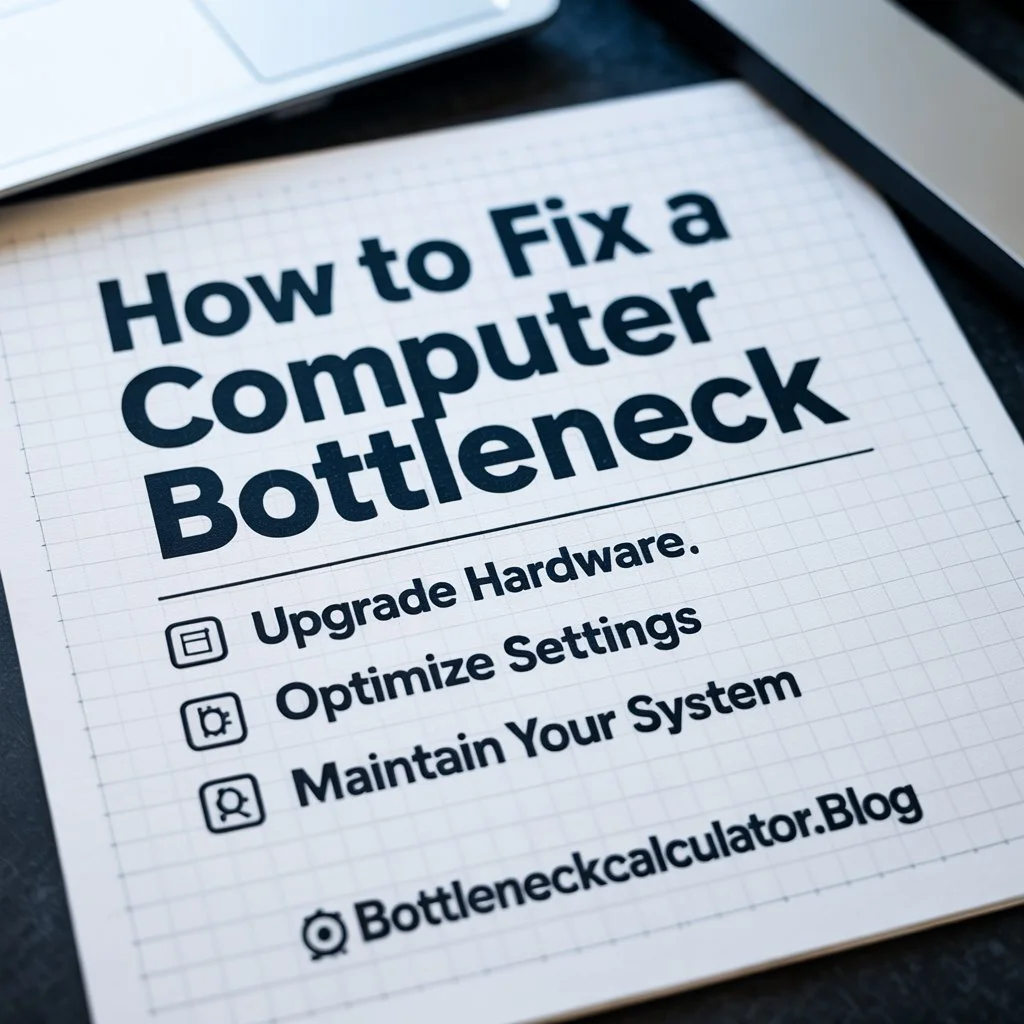
✅ Upgrade Hardware
- CPU bottleneck → Better processor (more cores/threads)
- GPU bottleneck → More powerful GPU
- RAM bottleneck → Faster or more RAM
- Storage bottleneck → Upgrade to SSD/NVMe
✅ Optimize Settings
- Lower CPU-heavy or GPU-heavy settings
- Enable DLSS, FSR, or dynamic resolution scaling
- Close background programs
✅ Maintain Your System
- Keep drivers updated
- Manage temps (use cooling pads or better fans)
- Use performance mode in Windows settings
Real-World Examples
Example 1: Ryzen 5 3600 + RTX 4090 → CPU bottleneck (GPU too strong).
Example 2: Intel i9 + GTX 1060 → GPU bottleneck (CPU overkill).
Example 3: Ryzen 7 + RTX 4070 → Balanced setup (ideal).
FAQs About Computer Bottleneck Calculators
1. What is a bottleneck in a computer system?
It’s when one part (CPU, GPU, or RAM) limits the performance of other parts, creating a slowdown.
2. How do I know if my computer is bottlenecking?
Monitor CPU and GPU usage during tasks. If one is maxed out while the other isn’t, you have a bottleneck.
3. Can bottleneck damage my computer?
No, it won’t damage hardware — but it can reduce performance and shorten the lifespan if components are constantly maxed.
4. How accurate is a computer bottleneck calculator?
It’s an estimate, not exact. Real-world results depend on drivers, background software, and optimization.
5. Does a bottleneck lower FPS?
Yes. Severe bottlenecks cause stuttering, lag, and FPS instability during gaming.
6. What percentage bottleneck is acceptable?
Up to 20% is fine. Above 30–40% may noticeably affect gameplay.
7. Can RAM cause bottlenecks?
Yes. Too little or slow RAM prevents your CPU from working efficiently, especially in games and multitasking.
8. How do I fix a CPU or GPU bottleneck?
Upgrade the weaker component, adjust settings, or use upscaling tech like DLSS/FSR.
9. Can overheating cause a bottleneck?
Yes, high temps can cause thermal throttling, making CPUs or GPUs run slower.
10. Does bottlenecking affect gaming performance?
Absolutely. It can cause FPS drops, inconsistent frame pacing, and lag spikes.
Conclusion
A computer bottleneck doesn’t mean your PC is broken — it just means one part is working harder than the rest.
Use our Computer Bottleneck Calculator to find out which component is holding you back, balance your build, and enjoy smoother gaming and multitasking performance.
👉 Try it now — check your CPU, GPU, and RAM balance instantly!