Understanding how well your CPU and GPU work together is one of the most important steps in optimizing your gaming or productivity performance. A bottleneck occurs when one component — usually the CPU or GPU — limits the other’s ability to perform at its full potential.
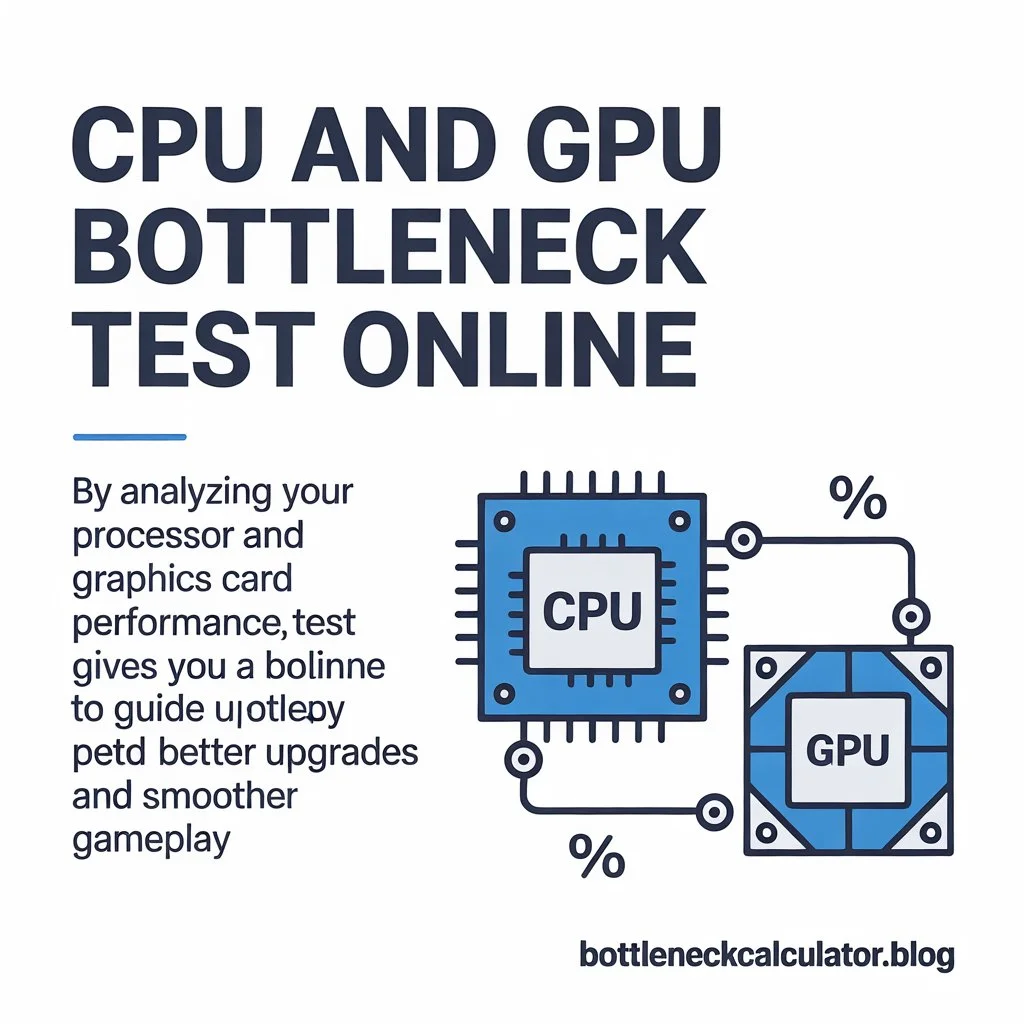
Looking to check if your CPU and GPU are holding each other back? The CPU and GPU Bottleneck Test Online helps you instantly find out whether your system is well-balanced or if one component limits your PC’s potential. By analyzing your processor and graphics card performance, this online test gives you a bottleneck percentage to guide better upgrades and smoother gameplay.
Online bottleneck calculators and tests make this process easy, letting you simulate your setup before spending money on upgrades.
💻 What Is a CPU and GPU Bottleneck?
A bottleneck happens when your processor or graphics card can’t keep up with the other.
- CPU bottleneck: Your processor is the limiting factor, especially in CPU-heavy games or multitasking.
- GPU bottleneck: Your graphics card is fully utilized while your CPU still has headroom — common at higher resolutions like 1440p or 4K.
Essentially, if your GPU is too powerful for your CPU, or vice versa, you’re not getting the best frame rates or efficiency possible.
⚙️ How the Online Bottleneck Test Works
A typical CPU and GPU bottleneck test online works using benchmark-based data and theoretical modeling. Here’s what happens behind the scenes:
Step-by-Step Process:
- Select CPU and GPU – Choose your components from a database (Intel, AMD, NVIDIA, etc.).
- Choose Resolution – Pick your gaming resolution (1080p, 1440p, or 4K).
- Run the Simulation – The tool compares your CPU’s average performance with your GPU’s benchmark.
- Get Bottleneck Percentage – A clear percentage shows how much one component limits the other.
- View Upgrade Suggestions – The calculator often recommends which part to upgrade for optimal balance.
🧩 Example Bottleneck Test Results
| CPU | GPU | Resolution | Estimated Bottleneck | Limiting Component | Notes |
| Ryzen 5 5600 | RTX 4070 | 1440p | ~6% | Balanced | Ideal pairing for mid-high gaming |
| Intel i5-10400F | RTX 4070 | 1080p | ~15% | CPU | Slight CPU limit in eSports titles |
| Ryzen 7 7800X3D | RTX 3060 | 1080p | ~8% | GPU | GPU limits FPS at lower resolutions |
| Intel i9-13900K | RTX 4090 | 4K | ~4% | GPU | GPU-bound at high resolutions |
| Ryzen 3 3200G | RTX 3060 Ti | 1080p | ~35% | CPU | Major CPU bottleneck |
⚙️ Note: These results are estimated and vary based on real-world conditions, driver versions, and RAM speed.
🔍 Understanding Bottleneck Percentages
| Percentage Range | Meaning | Performance Impact |
| 0–10% | Excellent balance | Smooth and optimized |
| 10–20% | Minor bottleneck | Slight limitations in heavy scenes |
| 20–40% | Noticeable bottleneck | May affect frame rates or responsiveness |
| 40%+ | Severe bottleneck | Significant performance loss |
✅ Example:
If your system shows a 15% CPU bottleneck, it means your CPU can’t fully keep up with your GPU — upgrading the processor would improve FPS and stability.
🎮 Why Use a CPU and GPU Bottleneck Test Online?
1. Plan Better PC Builds
Before buying parts, simulate how they’ll perform together — preventing mismatched combinations.
2. Optimize Gaming Performance
Identify whether low FPS is caused by CPU limits or GPU saturation.
3. Smart Upgrade Decisions
Know whether to invest in a faster CPU, GPU, or more RAM.
4. Avoid Overpaying
Sometimes, upgrading one part yields minimal gains. A test prevents overspending.
🧠 Common Bottleneck Scenarios
1. CPU Bottleneck
Occurs in fast-paced or open-world games with high draw calls and physics processing.
Examples:
- Valorant, Counter-Strike 2, or GTA V often stress the CPU first.
- Intel i5-9400F + RTX 3080 may show ~25% CPU bottleneck at 1080p.
2. GPU Bottleneck
Appears when the GPU works at full load while CPU usage remains low.
Examples:
- Cyberpunk 2077 or Red Dead Redemption 2 at 4K with ultra settings.
- Ryzen 5 5600 + RTX 3060 → ~10% GPU bottleneck.
🧮 Factors Affecting Bottleneck Results
- Resolution: Higher resolutions shift load to GPU.
- Game Type: Strategy games hit CPUs harder; shooters tax GPUs.
- RAM Speed: Slow memory can cause artificial CPU bottlenecks.
- Cooling and Power: Thermal throttling or weak PSU can alter results.
- Drivers & BIOS Updates: Performance tuning can improve balance over time.
🔧 How to Fix or Reduce Bottlenecks
| Method | Impact |
| Upgrade CPU or GPU | Balances component workloads |
| Increase RAM speed | Helps reduce CPU overhead |
| Optimize game settings | Adjust shadows, draw distance, or resolution |
| Overclock (if safe) | Small performance boosts possible |
| Close background apps | Frees CPU resources |
Example:
Lowering game resolution from 1440p to 1080p may shift a GPU bottleneck toward the CPU, improving performance consistency.
⚙️ Limitations of Online Bottleneck Tests
Even the most trusted bottleneck calculators have constraints:
- Do not consider RAM, SSD, or motherboard quality.
- Cannot simulate specific games or workloads.
- Use average benchmark data, not live system monitoring.
- May not include newly released CPUs/GPUs immediately.
💡 Always treat bottleneck percentages as a general guideline, not a fixed rule.
🧭 Example Use Cases
🎮 For Gamers
Test setups before purchasing new GPUs like RTX 4070 or RX 7800 XT to avoid CPU bottlenecks.
🧑💻 For Creators
Estimate CPU-GPU balance for rendering or editing workloads (Premiere Pro, Blender, etc.).
🛠️ For PC Builders
Compare multiple configurations efficiently before ordering parts.
❓ FAQs
Q1. What is a CPU and GPU bottleneck test used for?
It helps identify which component limits your system performance — CPU or GPU — to optimize or plan upgrades.
Q2. Is the bottleneck percentage accurate?
It’s an estimate based on benchmark averages. Real-world results vary by game, settings, and thermal conditions.
Q3. Can I use the test for laptops?
Yes, but laptops often throttle performance, so results are approximate.
Q4. What’s a normal bottleneck percentage?
Anything under 10–15% is generally fine and won’t affect gameplay noticeably.
Q5. Does RAM affect bottleneck results?
Yes — slow or insufficient RAM can make your CPU appear weaker than it is.
Q6. Do I need to download software?
No. The online version works directly in your browser — no installation required.
Q7. Can overclocking reduce bottlenecks?
Moderate CPU overclocking can reduce small bottlenecks, but cooling and stability must be monitored.
🧾 Conclusion
A CPU and GPU bottleneck test online is one of the simplest ways to evaluate whether your computer’s performance is balanced.
It’s quick, free, and helps you decide which upgrades are worth investing in.
By understanding how your processor and graphics card interact — and interpreting bottleneck percentages properly — you can fine-tune your PC for better frame rates, smoother gameplay, and maximum efficiency.