A CPU vs GPU Bottleneck Calculator helps determine whether your processor or graphics card is the limiting factor in your PC’s performance. By comparing benchmark data and resolution settings, it estimates which part — CPU or GPU — holds back frame rates, helping users balance their systems for smoother gameplay.
Have you ever wondered why some games feel laggy even when you have powerful hardware?
In most cases, the problem isn’t your settings — it’s a bottleneck between your CPU and GPU. The CPU vs GPU Bottleneck Calculator is a simple way to find out which component is limiting your system’s performance and how to fix it.
This guide explains what CPU and GPU bottlenecks are, how calculators estimate them, what real results look like, and how you can use our tool at BottleneckCalculator.blog to get the most accurate performance analysis.
💡 What Is a CPU vs GPU Bottleneck?
A bottleneck happens when one PC component slows down another, reducing total system performance. In gaming and creative workloads, this typically happens between the CPU (Central Processing Unit) and GPU (Graphics Processing Unit).
🧠 CPU Bottleneck
A CPU bottleneck occurs when the processor cannot keep up with the GPU’s demands.
The CPU manages game logic, physics, AI, and background processes. When it’s overloaded, it prevents the GPU from rendering new frames efficiently.
Common signs of a CPU bottleneck:
- CPU usage at or near 100%, GPU usage below 80%.
- FPS drops in CPU-intensive games (e.g., Valorant, GTA V, Starfield, Cities: Skylines 2).
- Noticeable frame stutter during large battles or open-world areas.
🎮 GPU Bottleneck
A GPU bottleneck occurs when the graphics card is maxed out and cannot render frames fast enough, even though the CPU has spare capacity.
Common signs of a GPU bottleneck:
- GPU usage at 99–100%, CPU around 50–70%.
- FPS doesn’t improve even if you lower in-game settings.
- Most common at higher resolutions (1440p, 4K) and ultra settings.
In an ideal PC build, your CPU and GPU should both operate near their potential without one drastically limiting the other.
⚙️ How a CPU vs GPU Bottleneck Calculator Works
The CPU vs GPU Bottleneck Calculator compares performance benchmarks for your specific hardware combination.
By entering your CPU model, GPU model, and resolution, it calculates an estimated bottleneck percentage — showing whether your system is CPU-bound, GPU-bound, or balanced.
Step-by-Step Process
- Select Your CPU
Choose from a list of current and legacy processors such as Intel Core, AMD Ryzen, or Apple Silicon. - Select Your GPU
Pick your graphics card — NVIDIA GeForce, AMD Radeon, or Intel Arc. - Choose Your Resolution
Set your target (1080p, 1440p, or 4K). Bottlenecks vary significantly with resolution. - View Results
The calculator generates:
- Bottleneck percentage
- Limiting component (CPU or GPU)
- Quick performance insight (“Slight CPU bottleneck,” “Balanced,” etc.)
- Bottleneck percentage
- Interpret Recommendations
Some calculators suggest potential upgrades or configuration changes to balance performance.
📊 Example Bottleneck Results
| CPU | GPU | Resolution | Estimated Bottleneck | Limiting Component | Notes |
| Ryzen 5 5600 | RTX 4070 | 1080p | ~10% | CPU | Balanced setup for gaming |
| Intel i5-12400F | RTX 4070 Ti | 1440p | ~5% | Balanced | Ideal for mid-range PCs |
| Ryzen 7 7800X3D | RTX 3060 | 1080p | ~8% | GPU | GPU-limited at lower res |
| Intel i9-14900K | RTX 4090 | 4K | ~3% | GPU | GPU-bound at ultra settings |
| Ryzen 5 3600 | RTX 4080 | 1080p | ~18% | CPU | Slight CPU limitation in eSports titles |
⚙️ These results are illustrative estimates — real-world numbers can vary based on drivers, RAM, and software.
🧠 Understanding Bottleneck Percentages
A bottleneck percentage is the difference between the component’s potential and actual usage. It helps you visualize performance balance.
| Bottleneck % | Meaning | Recommendation |
| 0–10% | Excellent balance | No action needed |
| 10–20% | Minor bottleneck | Fine-tune settings |
| 20–40% | Noticeable imbalance | Upgrade weaker part |
| 40%+ | Major limitation | Upgrade or optimize immediately |
The lower the percentage, the more efficiently your CPU and GPU work together.
🔍 CPU Bottleneck Explained
Causes
- Insufficient CPU threads or cache
- Heavy background processes
- High draw calls from open-world or simulation games
- RAM speed bottlenecks (slow DDR4 with high-end GPUs)
Solutions
- Upgrade CPU: Move from a quad-core to a 6- or 8-core processor.
- Close background apps: Chrome, OBS, and Discord can eat CPU cycles.
- Overclock carefully: Mild overclocks can improve frame consistency.
- Use faster RAM: DDR5 or high-speed DDR4 (3200+ MHz).
🎮 GPU Bottleneck Explained
Causes
- High-resolution gaming (1440p, 4K)
- Ultra graphics settings (ray tracing, textures, shadows)
- Outdated drivers
- Thermal throttling (overheating GPU)
Also Test: 1440p Gaming Bottleneck Calculator
Solutions
- Lower graphics settings: Disable unnecessary visual effects.
- Enable DLSS/FSR: Use AI upscaling for higher FPS.
- Upgrade GPU: Especially if it’s 2+ generations old.
- Improve cooling: Maintain temperatures below 80°C.
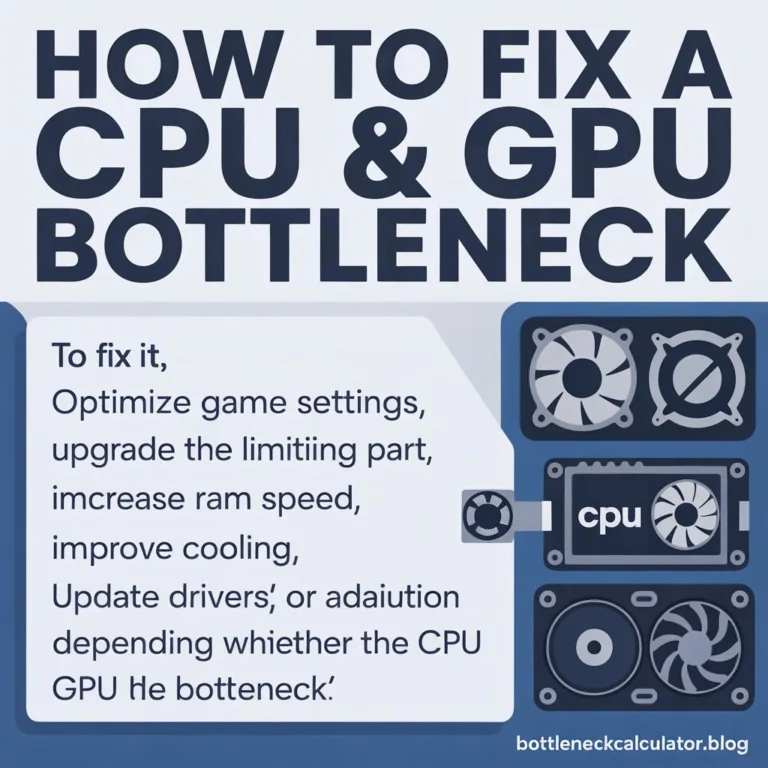
🔧 How to Fix CPU vs GPU Bottlenecks
Here’s a quick, step-by-step guide to balance your setup.
| Step | Action | Target Bottleneck |
| 1 | Identify limiting component using calculator | Both |
| 2 | Adjust resolution (higher res = GPU load, lower = CPU load) | CPU bottleneck |
| 3 | Tweak settings (textures, draw distance, shadows) | GPU bottleneck |
| 4 | Upgrade hardware strategically | Both |
| 5 | Optimize software (drivers, BIOS, background apps) | Both |
| 6 | Improve airflow & cooling | Prevent throttling |
💡 Balancing doesn’t always mean upgrading — sometimes it’s just smart tuning.
🚀 Why Use the BottleneckCalculator.blog Tool
If you want accurate, updated, and realistic CPU vs GPU bottleneck testing, our tool at BottleneckCalculator.blog delivers deeper insights than most web calculators.
🔹 Key Advantages
- Live Database Updates: Includes the latest Intel, AMD, and NVIDIA hardware.
- Resolution-Based Accuracy: Tailored results for 1080p, 1440p, and 4K gaming.
- Balanced Recommendations: Identifies both CPU and GPU limitations.
- Simple Interface: Fast, mobile-friendly, and free to use.
🧩 Real-World Examples: CPU vs GPU Limitations
Scenario 1: Entry-Level Gaming PC
- CPU: Intel i3-12100F
- GPU: GTX 1660 Super
- Resolution: 1080p
- Result: ~12% CPU bottleneck
💡 Great budget setup; minor slowdowns in CPU-heavy open-world games.
Scenario 2: Mid-Range Gaming Setup
- CPU: Ryzen 5 5600X
- GPU: RTX 4070
- Resolution: 1440p
- Result: ~6% bottleneck (balanced)
💡 Smooth gameplay across most AAA titles.
Scenario 3: High-End 4K Gaming Rig
- CPU: i7-13700K
- GPU: RTX 4090
- Resolution: 4K
- Result: ~4% GPU bottleneck
💡 GPU-limited at ultra resolutions; CPU still handles easily.
❓ FAQs
1. How do I know if my CPU or GPU is bottlenecking?
Monitor both components’ usage during gameplay. If CPU usage is higher than GPU, it’s a CPU bottleneck — and vice versa.
2. What is a good bottleneck percentage?
Anything under 15% is considered normal. Above 30%, you’ll likely notice performance issues.
3. Can bottlenecks damage your PC?
No — but they can waste potential performance. Your system simply won’t use all its hardware power efficiently.
4. Does screen resolution affect bottlenecks?
Yes. Lower resolutions increase CPU load; higher resolutions shift the load to the GPU.
5. Can overclocking fix a CPU bottleneck?
In many cases, yes — especially if your CPU has thermal headroom. However, it won’t help if the chip is already maxed out in core count or architecture.
6. Are bottleneck calculators accurate?
They provide estimates, not exact measurements. Use them as guidance, not definitive proof.
7. Is it possible to have both CPU and GPU bottlenecks?
Yes, depending on the task. Some games stress both simultaneously.
8. How often should I check for bottlenecks?
After major hardware changes, driver updates, or new game releases.
9. What’s the easiest way to balance performance?
Match components from the same performance tier — e.g., Ryzen 7 7800X3D + RTX 4070 Ti or i5-14600K + RTX 4070.
10. Where can I test my setup online?
Visit BottleneckCalculator.blog to run a quick CPU vs GPU bottleneck test online for free.
⚡ Final Thoughts
The CPU vs GPU Bottleneck Calculator is an essential tool for understanding performance balance in your PC.
It helps identify whether your processor or graphics card is the limiting factor — empowering you to make smarter upgrade and optimization decisions.
While bottlenecks can’t always be eliminated, they can be minimized through tuning, balanced builds, and informed upgrades.
To get the most accurate and up-to-date results, try our free Bottleneck Calculator today at BottleneckCalculator.blog and find out exactly what’s holding your performance back.