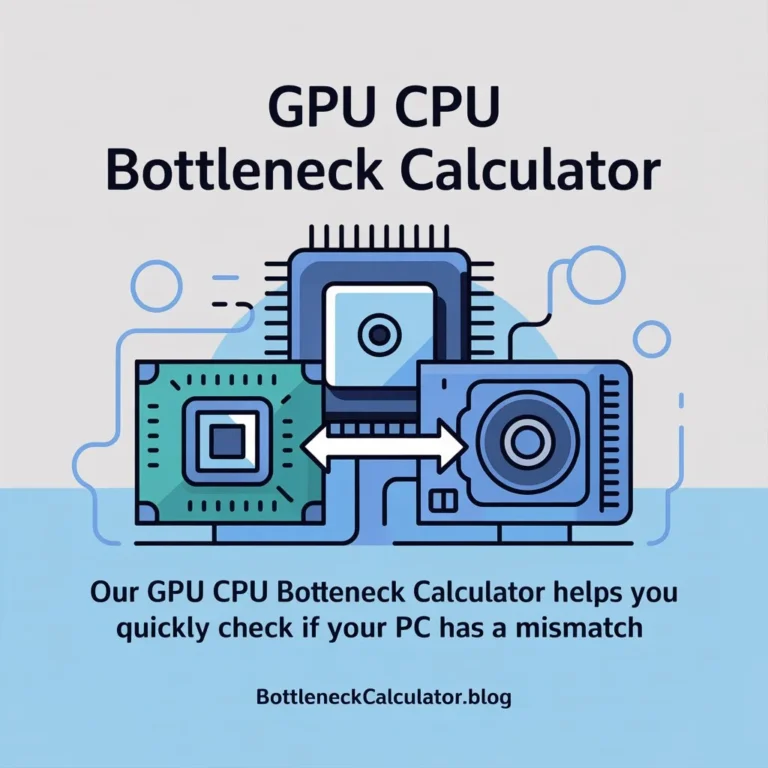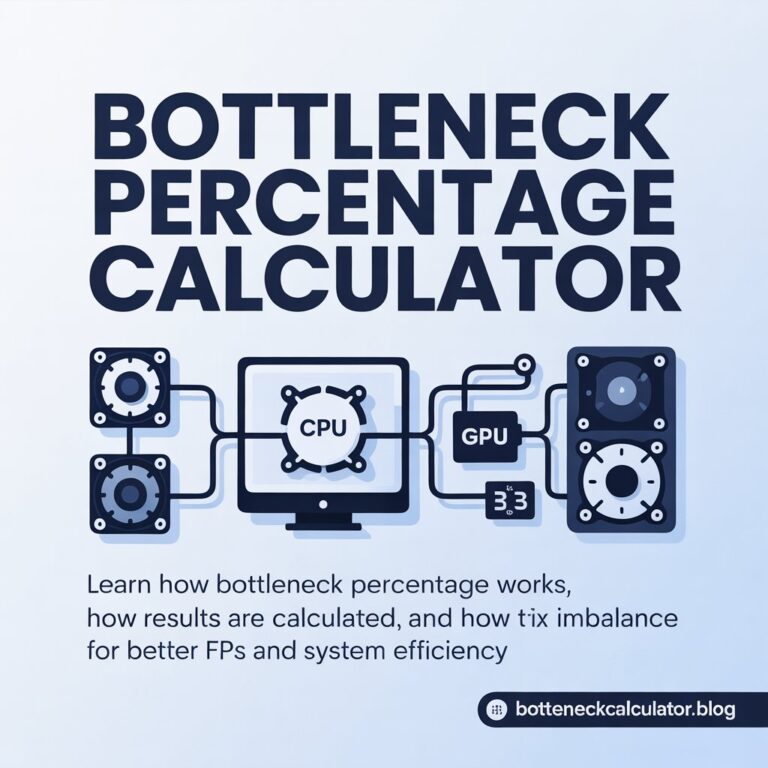
Wondering if your gaming PC isn’t performing as well as it should? A Gaming Bottleneck Calculator helps you identify whether your CPU or GPU is limiting your FPS — and shows how to balance your system for smoother gameplay.
💡 What Is a Gaming Bottleneck Calculator?
A gaming bottleneck calculator is a tool that estimates how balanced your computer’s CPU (processor) and GPU (graphics card) are when running modern games.
If one of your components is too weak compared to the other, it can “bottleneck” performance — reducing frame rates, causing lag spikes, or wasting potential power.
Gamers use bottleneck calculators to:
- Measure whether their CPU or GPU is the limiting factor.
- Predict FPS (frames per second) in specific resolutions.
- Avoid mismatched PC builds when upgrading.
- Get recommendations for balanced hardware pairings.
For example, pairing a Ryzen 5 5600 with an RTX 4090 would cause a large CPU bottleneck — your processor can’t keep up.
But pairing the same CPU with an RTX 4070 would create a near-perfect gaming balance.
⚙️ How the Gaming Bottleneck Calculator Works
The calculator uses hardware performance databases and benchmark data to estimate the relationship between your CPU and GPU.
It compares each component’s capability based on factors like:
- Average benchmark score
- Resolution (1080p, 1440p, 4K)
- Expected gaming load
- CPU threading and GPU VRAM utilization
🧾 Step-by-Step Process
- Select Your CPU and GPU
Choose from hundreds of Intel, AMD, and NVIDIA models — from older generations to the latest releases. - Choose Your Resolution
Select your gaming target:
- 1080p: More CPU-bound
- 1440p: Balanced between CPU & GPU
- 4K: Mostly GPU-bound
- 1080p: More CPU-bound
- View the Result
The calculator instantly provides a bottleneck percentage and identifies whether the CPU or GPU limits performance. - Interpret the Recommendation
It also suggests which component upgrade could improve your gaming performance the most.
📊 Example: Realistic Bottleneck Results
| CPU | GPU | Resolution | Estimated Bottleneck | Limiting Component | Notes |
| Ryzen 5 5600 | RTX 4070 | 1440p | ~6% | None | Excellent gaming balance |
| Intel i5-10400F | RTX 4070 | 1080p | ~18% | CPU | FPS dips in CPU-heavy titles |
| Ryzen 7 7800X3D | RTX 3060 | 1080p | ~9% | GPU | Slight GPU bottleneck |
| Intel i9-14900K | RTX 4090 | 4K | ~3% | GPU | Perfectly balanced at 4K |
| Ryzen 5 3600 | RTX 3080 | 1440p | ~16% | CPU | Minor CPU limitation |
⚙️ These figures are illustrative but realistic based on 2024 benchmark data. Real-world FPS may vary by game, driver, and cooling.
🔍 Understanding Your Bottleneck Percentage
When you calculate your gaming bottleneck, you’ll get a percentage value — here’s how to interpret it:
| Bottleneck % | System Balance | Recommendation |
| 0–10% | Excellent | Perfect pairing — no upgrade needed |
| 10–20% | Minor | Small loss; tweak settings for balance |
| 20–40% | Moderate | Noticeable drop — consider upgrading weakest part |
| 40%+ | Severe | Major mismatch — upgrade essential |
For gaming, under 20% bottleneck is typically fine. You’ll rarely notice the performance gap unless you’re targeting 200+ FPS at 1080p.
🎮 Common Gaming Bottlenecks and Scenarios
🧠 CPU Bottleneck in Games
Occurs when your CPU can’t process enough game logic (AI, physics, NPCs) per frame to feed your GPU efficiently.
Typical Signs:
- CPU usage near 100%, GPU at 70–80%.
- FPS drops in CPU-heavy games like Valorant, Counter-Strike 2, or GTA V.
- Low 1% and 0.1% FPS values (micro-stutters).
Fixes:
- Upgrade to a modern CPU (Ryzen 7 7800X3D, i5-13600K).
- Increase RAM speed or enable XMP.
- Reduce draw distance, physics, or simulation settings.
💻 GPU Bottleneck in Games
Happens when your GPU is maxed out rendering frames while your CPU has idle capacity.
Typical Signs:
- GPU usage 99–100%.
- FPS improves when lowering resolution or graphics settings.
- Common in visually demanding AAA titles like Cyberpunk 2077 or Starfield.
Fixes:
- Upgrade GPU (e.g., from RTX 3060 → RTX 4070).
- Enable upscaling (DLSS, FSR).
- Lower texture and ray tracing quality.
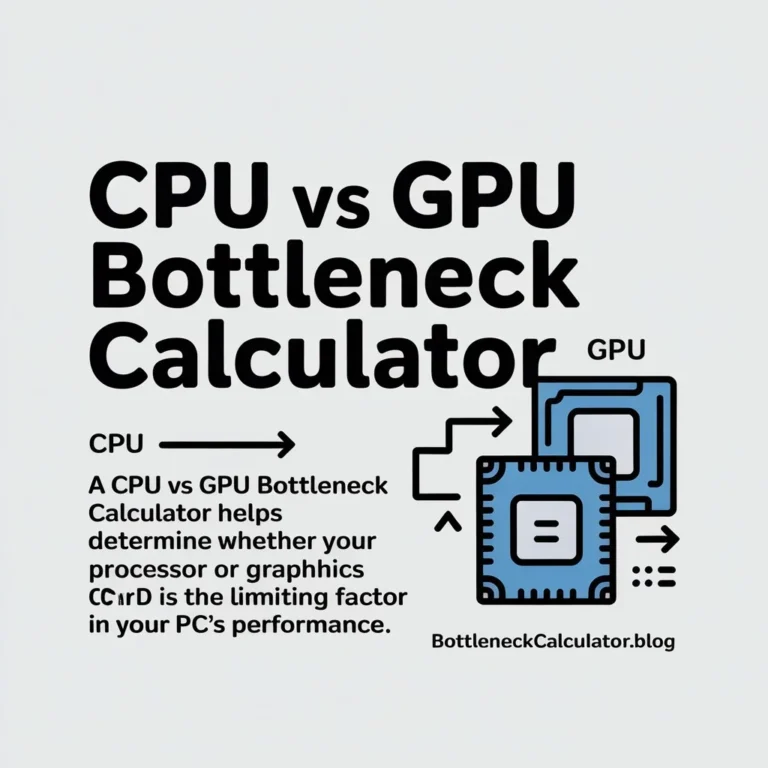
Also Test: CPU vs GPU Bottleneck Calculator
🧩 Balanced Systems
When both CPU and GPU are used efficiently — the sweet spot for gaming performance.
Example:
Ryzen 5 5600X + RTX 4070 at 1440p gives you ~6% bottleneck, meaning you’re getting nearly full performance out of both components.
🛠️ How to Reduce Gaming Bottlenecks
Even if your calculator result shows an imbalance, you can tune your PC for better balance before upgrading parts.
- Upgrade the Limiting Component
Identify whether CPU or GPU is weaker — then upgrade strategically. - Optimize In-Game Settings
- CPU-bound? Lower simulation distance, disable V-Sync.
- GPU-bound? Drop resolution or reduce texture quality.
- CPU-bound? Lower simulation distance, disable V-Sync.
- Use Performance Features
- Enable DLSS/FSR (for NVIDIA/AMD GPUs).
- Cap FPS slightly below monitor refresh rate for stability.
- Enable DLSS/FSR (for NVIDIA/AMD GPUs).
- Improve Cooling and Power
- Overheating CPUs can throttle down to 80–90% performance.
- Ensure stable power delivery for both CPU and GPU.
- Overheating CPUs can throttle down to 80–90% performance.
- Upgrade RAM and Storage
- At least 16 GB DDR4/DDR5 with high speed.
- SSD or NVMe storage improves load consistency.
- At least 16 GB DDR4/DDR5 with high speed.
🚀 Why Use Our Gaming Bottleneck Calculator
At BottleneckCalculator.blog, our Gaming Bottleneck Calculator offers:
- ✅ Accurate modern data (includes Ryzen 7000, Intel 14th Gen, RTX 4000, RX 7000).
- ✅ Real-world gaming performance modeling.
- ✅ Instant percentage & upgrade suggestions.
- ✅ FPS-oriented performance balance test.
- ✅ Game resolution presets for 1080p, 1440p, and 4K.
🎮 Try it now:
“Test your system with our Gaming Bottleneck Calculator — find out if your CPU or GPU limits your FPS and get instant performance insights.”
🔬 Example Gaming Build Comparisons
| Build Type | CPU | GPU | Resolution | Bottleneck | Performance Insight |
| Budget | Ryzen 5 3600 | RTX 3060 | 1080p | ~15% | Slight CPU bottleneck in esports titles |
| Mid-Range | i5-12400F | RTX 4070 | 1440p | ~8% | Well-balanced for 100–144 FPS gaming |
| High-End | Ryzen 7 7800X3D | RTX 4080 | 1440p | ~4% | Excellent balance, GPU-limited |
| Ultra 4K | i9-14900K | RTX 4090 | 4K | ~3% | GPU-bound, top-tier experience |
❓ FAQs
Q1. What does a Gaming Bottleneck Calculator do?
It estimates how balanced your CPU and GPU are in gaming scenarios by analyzing benchmark data and showing which part limits FPS.
Q2. Is a 10% bottleneck good for gaming?
Yes — anything under 15–20% is considered normal and won’t noticeably affect performance.
Q3. Can I fix a bottleneck without upgrading hardware?
Often yes. Adjusting resolution, graphics settings, and enabling DLSS/FSR can help reduce strain on the limiting component.
Q4. Does RAM speed or storage type affect bottlenecks?
Yes, slow RAM or HDDs can indirectly bottleneck your system by delaying frame data and asset loading.
Q5. Are bottleneck calculators accurate?
They provide estimates, not exact FPS data. Use them for guidance, not as a replacement for live benchmark testing.
Q6. Should I test at 1080p or 4K?
For gaming, test at your target resolution. Lower resolutions emphasize CPU bottlenecks; higher ones show GPU limits.
Q7. How often should I recheck my bottleneck?
After upgrading parts, changing resolutions, or updating drivers — all can shift performance balance.
🧠 Expert Insight: How Gamers Can Use Bottleneck Data
Many pro builders use bottleneck calculators not just for troubleshooting, but for budget optimization:
- Pair hardware that gives maximum FPS per dollar.
- Avoid over-investing in a GPU your CPU can’t feed.
- Plan future upgrades knowing where your next bottleneck will appear.
This helps create balanced gaming rigs that deliver smooth, consistent frame rates without overspending.
⚡ Final Thoughts
The Gaming Bottleneck Calculator is a must-have tool for every PC gamer and builder.
It helps you:
- Detect whether your CPU or GPU limits performance.
- Optimize your current setup for better FPS.
- Plan smarter upgrades without wasting money.
🕹️ Try it now on BottleneckCalculator.blog —
Instantly analyze your CPU–GPU balance, view bottleneck percentage, and unlock smoother gaming today.