A smooth gaming experience depends on balance between your CPU (processor) and GPU (graphics card). If one component is much faster than the other, it creates a bottleneck—a performance limit where your system can’t reach its full potential.
Our GPU CPU Bottleneck Calculator helps you quickly check if your PC has a mismatch. With just a few clicks, you can find bottleneck percentages, learn whether your CPU or GPU is holding you back, and discover ways to fix the issue.
What is a GPU CPU Bottleneck?
A GPU CPU bottleneck happens when your CPU and GPU can’t work at the same speed.
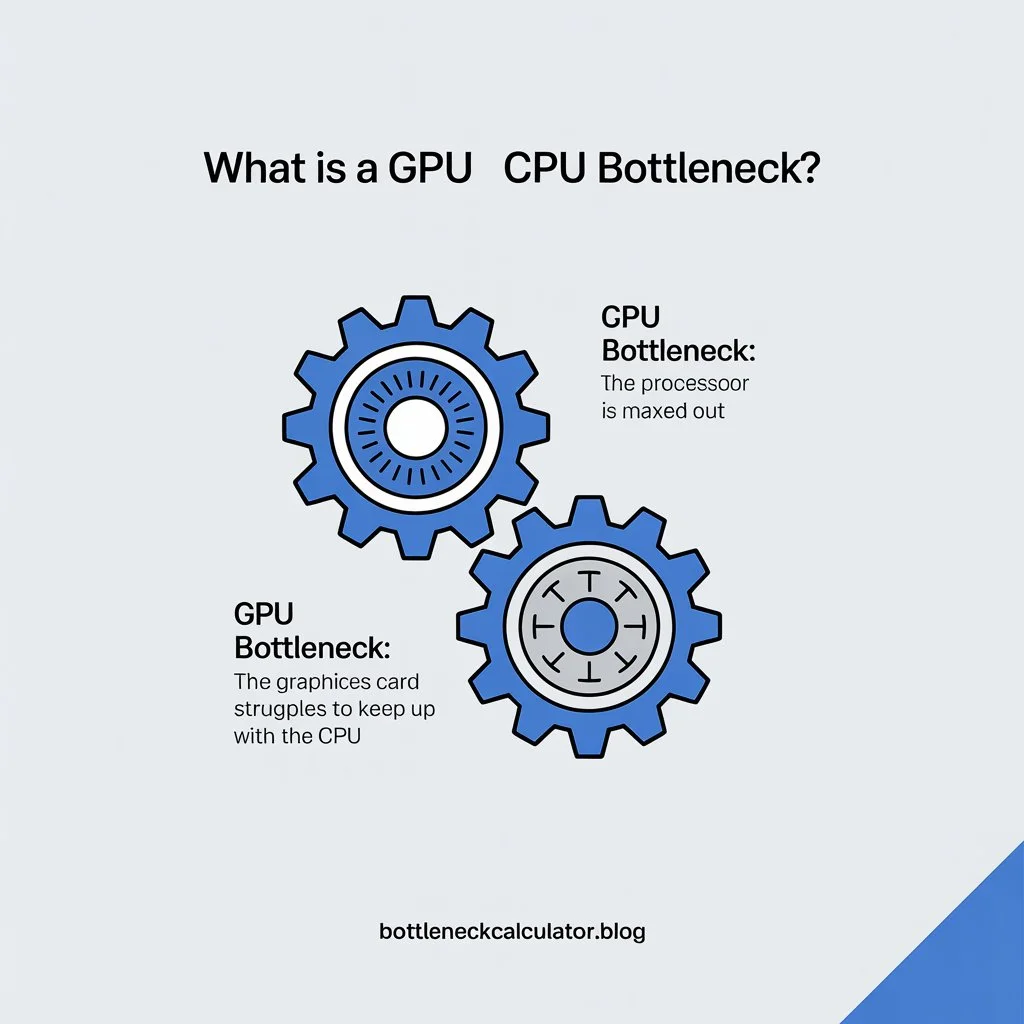
- CPU bottleneck: The processor is maxed out, limiting how much data the GPU can process. Common in esports and simulation games that rely heavily on CPU calculations.
- GPU bottleneck: The graphics card struggles to keep up with the CPU, often in AAA games with high resolutions or ray tracing enabled.
👉 Example: If you pair a high-end RTX 4090 with an old i5 CPU, the CPU will bottleneck performance. On the other hand, pairing a Ryzen 9 with a budget GPU will cause a GPU bottleneck.
How Does a GPU CPU Bottleneck Calculator Work?
A bottleneck calculator estimates performance balance by comparing:
- CPU performance: cores, threads, architecture, and clock speed.
- GPU performance: VRAM size, bandwidth, and power.
- Resolution and settings: Higher resolutions shift load toward the GPU, while lower resolutions can highlight CPU limits.
Bottleneck percentage ranges:

- 0–10% → Excellent balance (no noticeable bottleneck).
- 10–20% → Acceptable (minor performance loss).
- 20–40% → Noticeable bottleneck; may need upgrades.
- 40%+ → Serious bottleneck; performance is being wasted.
Signs You Have a CPU or GPU Bottleneck
- CPU bottleneck signs:
- CPU usage at 100% while GPU stays low.
- Low FPS even with powerful GPU.
- Stuttering in CPU-heavy games (RTS, MMOs, esports titles).
- CPU usage at 100% while GPU stays low.
- GPU bottleneck signs:
- GPU usage maxed out at 100% while CPU stays low.
- FPS drops at higher resolutions.
- Fan noise and heat from GPU under heavy load.
- GPU usage maxed out at 100% while CPU stays low.
CPU and GPU Bottleneck Test Online – Check PC Balance Instantly
How to Fix GPU CPU Bottlenecks
1. Upgrade Hardware
- Upgrade CPU if games rely more on processing.
- Upgrade GPU if performance drops at higher resolutions.
- Add faster RAM or an SSD to reduce secondary bottlenecks.
2. Optimize Settings
- Lower CPU-heavy settings: shadows, draw distance, crowd density.
- Lower GPU-heavy settings: resolution, ray tracing, textures.
3. Use Modern Tech
- DLSS / FSR / XeSS: Reduce GPU load with AI upscaling.
- Frame generation: Smooth gameplay even under GPU strain.
- Game optimization tools: Keep drivers and software updated.
Also Check: Computer Bottleneck Calculator – Find What’s Slowing Down Your PC
GPU CPU Bottleneck Calculator vs Other Tools
While general PC bottleneck calculators check your entire system, a GPU CPU bottleneck calculator focuses only on the two most important components for gaming. This makes it more precise for gamers who want to know if their CPU and GPU are truly balanced.
Best Practices for Avoiding Bottlenecks
- Pair mid-range CPUs with mid-range GPUs for balance.
- Don’t overspend on one part while neglecting the other.
- Match your monitor’s refresh rate with your hardware.
- Plan upgrades strategically to avoid wasted performance.
FAQs
1. What is a GPU CPU bottleneck?
It’s when your CPU and GPU are mismatched, and one limits the performance of the other.
2. How do I check for CPU GPU bottlenecks?
Use a GPU CPU bottleneck calculator, or monitor usage with MSI Afterburner. If CPU is maxed and GPU idle → CPU bottleneck. If GPU maxed and CPU idle → GPU bottleneck.
3. What percentage bottleneck is okay?
Under 20% bottleneck is fine. Anything higher can affect FPS and smoothness.
4. Is a bottleneck calculator accurate?
It’s an estimate, not 100% exact. Real performance depends on drivers, cooling, background tasks, and the game itself.
5. Is a 10% bottleneck bad?
No. A 10% bottleneck is normal and won’t cause noticeable problems.
6. Can RAM bottleneck CPU and GPU?
Yes. Insufficient RAM or very slow RAM can restrict data flow, creating performance issues.
7. Should I upgrade CPU or GPU first?
Upgrade whichever is the bottleneck. If CPU is holding you back → upgrade CPU. If GPU is the issue → upgrade GPU.
8. Can overclocking fix GPU CPU bottlenecks?
Mildly. Overclocking boosts performance but won’t eliminate a severe mismatch.
9. Do all games cause the same bottleneck?
No. CPU-heavy games (esports, strategy) may bottleneck CPUs, while graphically intense AAA titles bottleneck GPUs.
Conclusion
Balancing your CPU and GPU is essential for getting the most out of your gaming rig. While small bottlenecks are normal, large mismatches waste performance and reduce FPS.
Use our GPU CPU Bottleneck Calculator to test your setup, identify imbalances, and optimize your PC for smooth, lag-free gaming.