Have you ever wondered if your PC is bottlenecking your performance? Even with a powerful graphics card, your CPU or RAM could be holding you back. That’s where a PC Bottleneck Calculator comes in.
This tool helps you quickly check whether your CPU and GPU are balanced for gaming, streaming, or productivity. Enter your PC components, and you’ll instantly see bottleneck percentages along with upgrade suggestions.
What is a PC Bottleneck Calculator?
A PC Bottleneck Calculator is an online tool that analyzes your computer’s hardware balance. It compares your CPU, GPU, and sometimes RAM, to show if one component is limiting overall performance.
Unlike general performance tests, this calculator is designed specifically for PC builds—helping gamers, streamers, and content creators avoid mismatched components.
How Does the PC Bottleneck Calculator Work?
The calculator estimates hardware balance by analyzing:
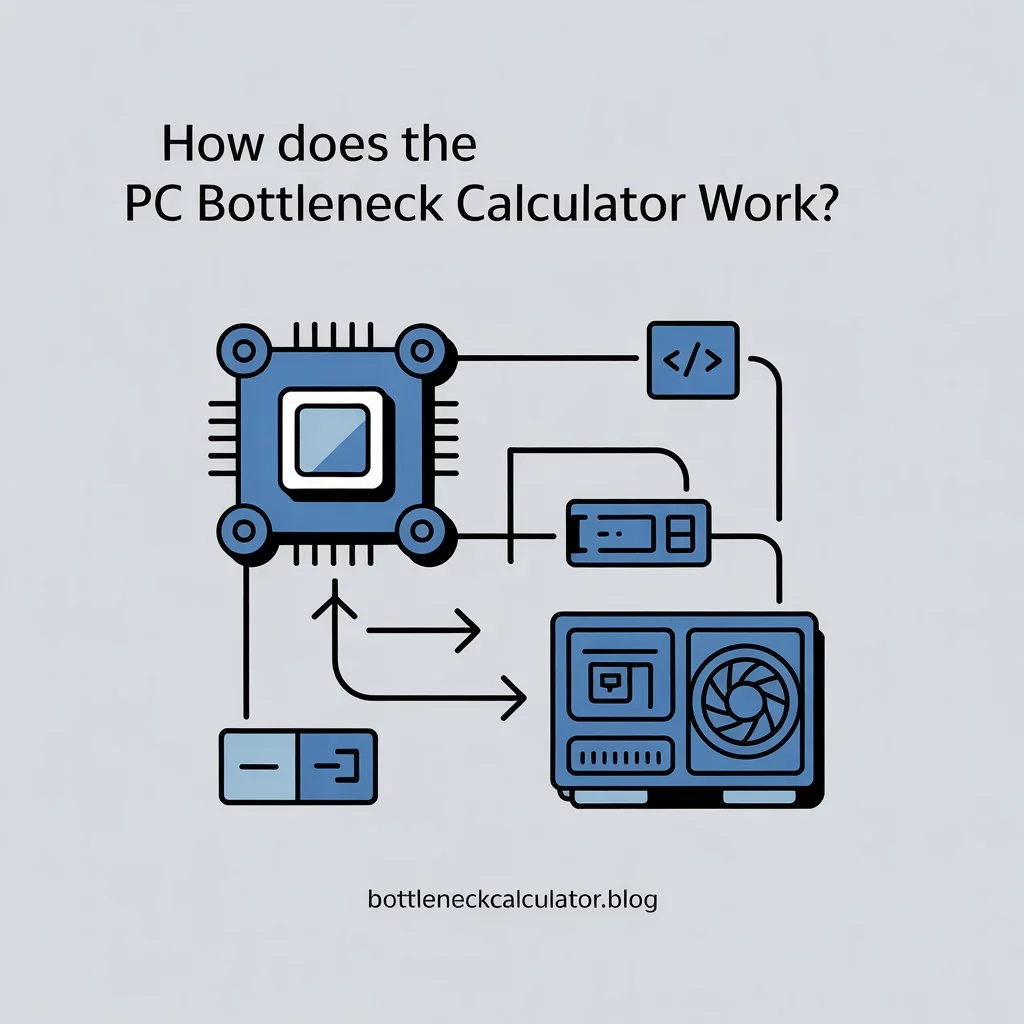
- CPU Performance → core count, clock speed, architecture
- GPU Performance → rendering power, VRAM, generation
- Resolution & Settings → 1080p, 1440p, 4K, ultra vs low
- Workload Type → gaming, streaming, video editing, multitasking
The result is shown as a bottleneck percentage. For example:
- 5–10% bottleneck → perfectly balanced
- 15–20% bottleneck → acceptable, minor impact
- 30%+ bottleneck → upgrade recommended
👉 Remember: It’s an estimate, not an absolute number. Real-world performance also depends on game optimization, drivers, and cooling.
Why Use a PC Bottleneck Calculator?
- Build a new PC wisely – avoid mismatched CPU/GPU combos.
- Upgrade planning – know whether to upgrade CPU or GPU first.
- Check prebuilt PCs/laptops – see if they’re balanced before buying.
- Improve gaming experience – minimize stuttering, FPS drops, and lag.
Example: Pairing an Intel i3 with an RTX 4080 creates a CPU bottleneck. But pairing a Ryzen 7 with an RTX 3070 is much more balanced.
Types of PC Bottlenecks
🔹 CPU Bottleneck
- CPU maxes out at 100% while GPU runs at low usage.
- Common in esports titles (Valorant, CS2, Fortnite) at high refresh rates.
- Fix: Upgrade CPU, optimize background processes.
Also Check: CPU Bottleneck Calculator
🔹 GPU Bottleneck
- GPU runs at 100% while CPU is underused.
- Common at 4K gaming with ultra settings.
- Fix: Upgrade GPU or lower graphics settings.
🔹 RAM & Storage Bottlenecks
- Low RAM (8GB) or slow HDD storage causes lag.
- Fix: Upgrade to 16–32GB RAM and SSD/NVMe.
🔹 Power & Thermal Bottlenecks
- Weak PSU or overheating can throttle performance.
- Fix: Better cooling or stronger PSU.
How to Fix PC Bottlenecks?
- Upgrade hardware:
- CPU bottleneck → stronger CPU with better single-core speeds
- GPU bottleneck → newer GPU with more VRAM
- CPU bottleneck → stronger CPU with better single-core speeds
- Optimize settings:
- Lower shadows, view distance, particle effects (CPU-heavy settings)
- Lower textures, resolution, ray tracing (GPU-heavy settings)
- Lower shadows, view distance, particle effects (CPU-heavy settings)
- Use new technologies:
- DLSS/FSR/XeSS for GPUs
- Resizable BAR for smoother data transfer
- DLSS/FSR/XeSS for GPUs
- Tweak system:
- Add more/faster RAM
- Move games to SSD
- Improve cooling for consistent performance
- Add more/faster RAM
FAQ Section for “PC Bottleneck Calculator”
Q1. What is a PC bottleneck?
A bottleneck happens when one component of your PC (CPU, GPU, RAM, or storage) limits the performance of the others, reducing efficiency and FPS in games.
Q2. How do I know if my PC has a bottleneck?
You can use a bottleneck calculator or check usage stats in Task Manager / MSI Afterburner. If your CPU is at 100% while GPU sits below 70%, you have a CPU bottleneck (and vice versa).
Q3. Is bottleneck always a bad thing?
No. A small bottleneck (under 10–20%) is normal and doesn’t hurt performance much. Every system has some bottleneck — the goal is balance, not perfection.
Q4. Can a powerful GPU still bottleneck a PC?
Yes. If paired with a weak CPU, the GPU won’t reach its full potential. For example, RTX 4080 + Intel i3 will cause CPU bottleneck.
Q5. Is 10% or 20% bottleneck bad for gaming?
Not at all. 10–20% is usually fine. Bottlenecks over 30% can start affecting FPS and smoothness.
Q6. Can RAM cause a PC bottleneck?
Yes. Insufficient RAM (8GB or less) or slow RAM speeds can bottleneck CPUs, especially in modern games that need 16–32GB RAM.
Q7. Can an SSD or HDD bottleneck performance?
Yes. A slow hard drive can bottleneck load times and cause stutters, even if CPU/GPU are strong. An SSD or NVMe drive fixes this.
Q8. Can overheating cause bottlenecks?
Absolutely. If your CPU or GPU overheats, it may throttle (reduce performance) to cool down, creating a thermal bottleneck.
Q9. Does resolution affect bottlenecking?
Yes. At 1080p, CPUs are often the bottleneck. At 4K, the GPU usually becomes the bottleneck.
Q10. Do different games cause different bottlenecks?
Yes. CPU-heavy games (like simulation/strategy) can bottleneck CPUs, while GPU-heavy games (AAA titles at 4K) push GPUs harder.
Q11. Can software cause bottlenecks?
Yes. Programs like Chrome, OBS, or background apps can eat CPU/RAM and cause bottlenecks.
Q12. Does overclocking reduce bottlenecks?
Yes, sometimes. Overclocking your CPU or GPU can reduce bottlenecks, but gains vary and stability/cooling must be considered.
Q13. Will upgrading my CPU always fix bottlenecks?
Not always. If your GPU is weak, upgrading the CPU won’t help. You must balance both parts.
Q14. Should I upgrade CPU or GPU first?
It depends. If CPU is at 100% while GPU is underused → upgrade CPU. If GPU is always maxed out → upgrade GPU first.
Q15. Do laptops face bottlenecks too?
Yes. Laptops are more prone to bottlenecks because CPUs and GPUs are lower-power and thermal-limited.
Q16. Why does my bottleneck result change over time?
Because hardware requirements change with new games, drivers, and updates. A PC that was balanced last year may bottleneck in new titles today.
Q17. Can I completely remove bottlenecks from a PC?
No. Every PC has a “weakest link.” The goal is to keep bottlenecks small (under 15–20%) so they don’t affect real-world performance.
Q18. How accurate are bottleneck calculators?
They give estimates based on component specs, not exact FPS numbers. Use them as guidance, not absolute truth.
Q19. Do I need to worry about bottlenecks if I only browse or watch videos?
No. Bottlenecks mainly matter in gaming, streaming, video editing, or other heavy workloads.
Q20. Can I test bottlenecks without a calculator?
Yes. Run a game, open Task Manager/Afterburner, and compare CPU vs GPU usage. If one is maxed while the other is underused, that’s your bottleneck.
Conclusion
The PC Bottleneck Calculator is a simple but powerful way to see if your system is truly balanced. Whether you’re building, upgrading, or troubleshooting your PC, knowing your bottleneck percentage helps you make smarter choices.
👉 Try our full Bottleneck Calculator now and see if your PC is bottleneck-free.