Are you curious whether your CPU and GPU are properly balanced for gaming or productivity?
The PC-Builds Bottleneck Calculator is one of the most popular tools that helps users find out if their PC parts are limiting performance. But is it truly accurate — and are there better options today?
Let’s explore how the PC-Builds calculator works, where it falls short, and how modern tools can give you more reliable and up-to-date results.
💡 What Is the PC-Builds Bottleneck Calculator?
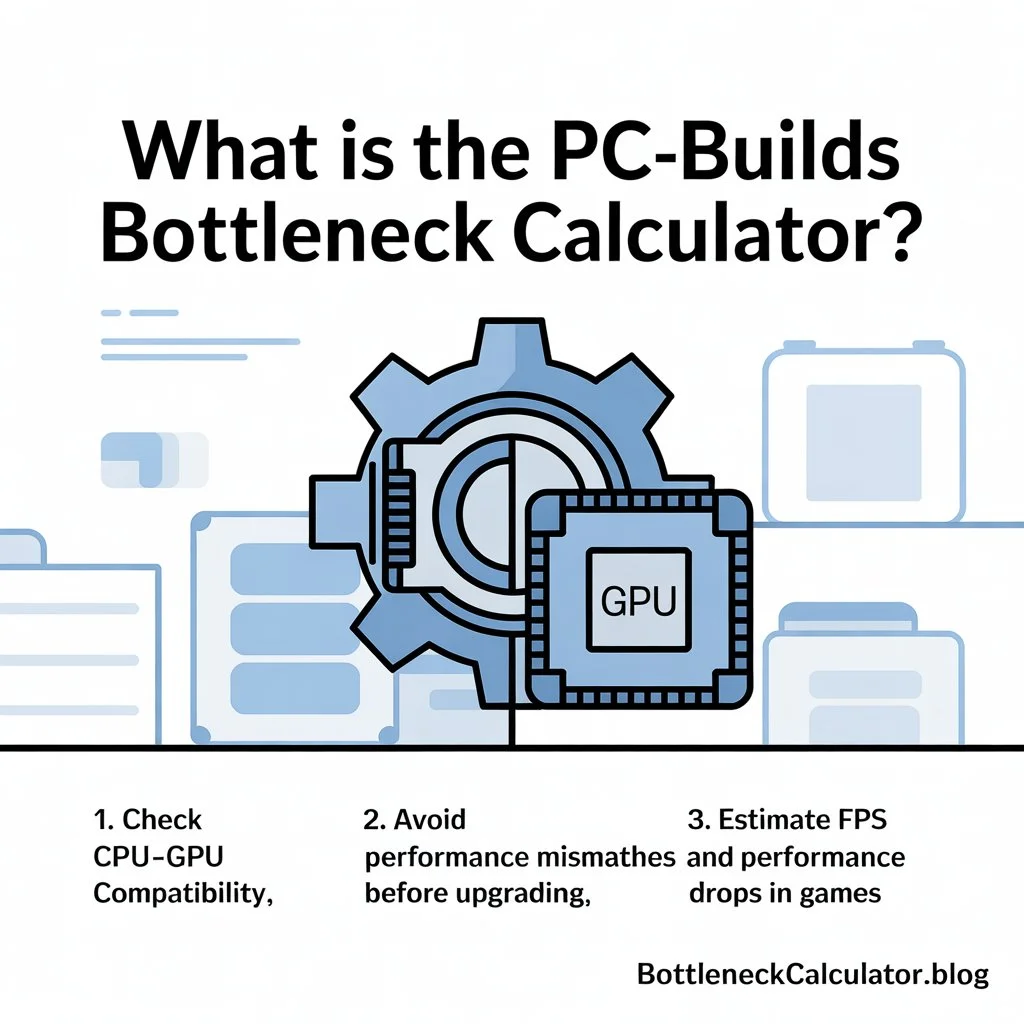
The PC-Builds Bottleneck Calculator was created to help PC enthusiasts determine if their CPU or GPU is slowing down their computer. By entering your CPU, GPU, and resolution, it generates a bottleneck percentage — showing how balanced your components are.
It’s especially popular among gamers and PC builders who want to:
- Check CPU–GPU compatibility
- Avoid performance mismatches before upgrading
- Estimate FPS and performance drops in games
While it’s useful for a quick reference, it’s important to understand that the PC-Builds calculator is based on static benchmark data, not real-time performance metrics.
⚙️ How Does the PC-Builds Bottleneck Calculator Work?
When you visit the site, you’ll notice it asks for:
- CPU model
- GPU model
- Screen resolution (1080p, 1440p, 4K)
- Usage type (gaming, workstation, streaming)
Once you enter your hardware, the calculator compares benchmark scores between your CPU and GPU. It then provides a bottleneck percentage and a short explanation — for example:
“Your CPU will cause a 12% bottleneck with this GPU.”
🔢 Understanding Bottleneck Percentage
- 0–10% → Excellent balance
- 10–20% → Slight performance loss
- 20–40% → Noticeable bottleneck (consider upgrading)
- 40%+ → Major imbalance
While these numbers are helpful, remember they’re estimates, not exact readings from your PC.
⚠️ Limitations of the PC-Builds Bottleneck Calculator
Although the PC-Builds calculator is simple and widely used, it has several limitations that affect its reliability today:
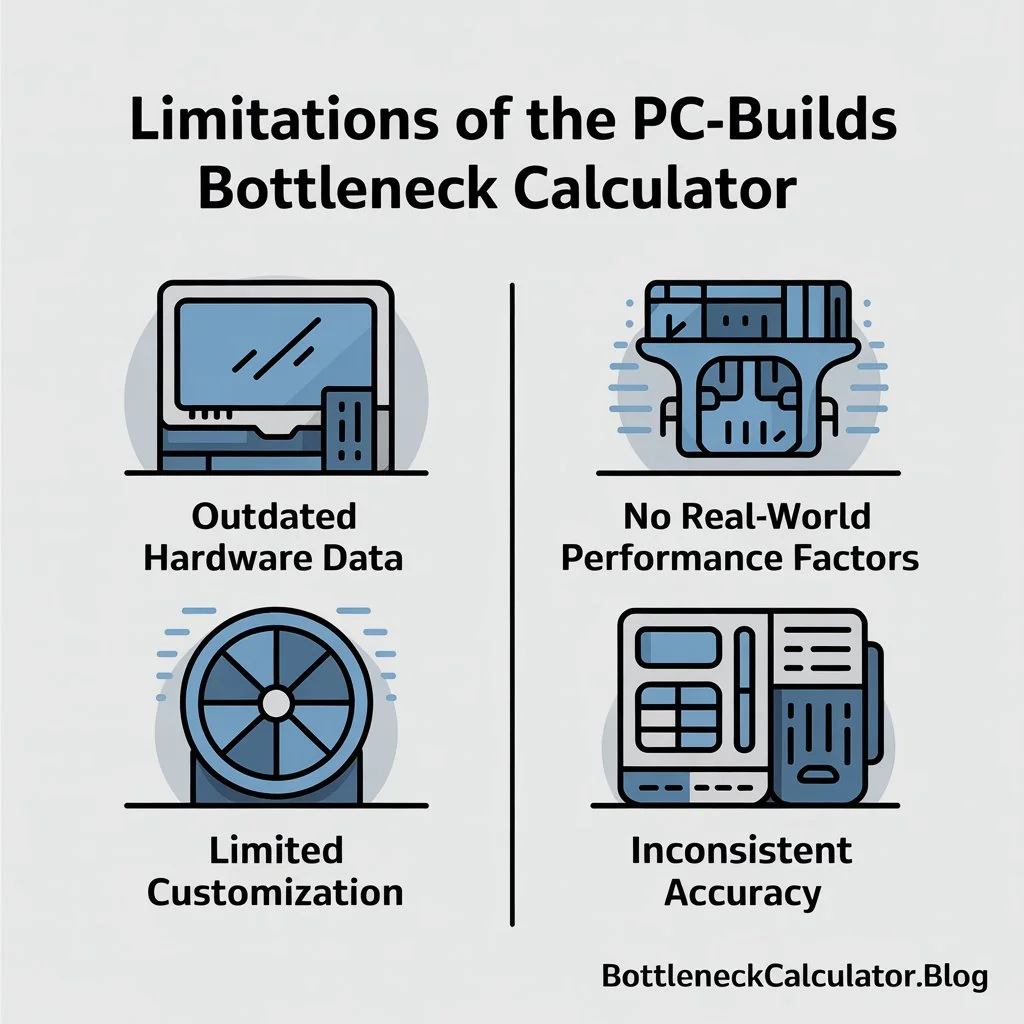
1. Outdated Hardware Data
The site often lacks data for the latest CPUs and GPUs — such as AMD Ryzen 7000 or Intel 14th Gen and RTX 4000 series cards.
2. No Real-World Performance Factors
It doesn’t consider drivers, RAM speed, cooling, or background processes — all of which impact actual performance.
3. Limited Customization
You can’t simulate overclocking, power limits, or game-specific workloads.
4. Inconsistent Accuracy
Results may vary significantly from real-world benchmarks, especially for mixed workloads like streaming or 3D rendering.
🚀 Why You Should Try Our Bottleneck Calculator Instead
If you want accurate, up-to-date, and realistic performance insights, our Bottleneck Calculator is built with modern data and expanded hardware logic.
Here’s why it’s better than the PC-Builds version:
✅ Updated Hardware Database — Includes latest CPUs and GPUs (Intel 14th Gen, Ryzen 7000, RTX 4000, RX 7000).
✅ Comprehensive Metrics — Considers RAM, storage speed, cooling, and resolution.
✅ Game & Workload Profiles — Different analysis for gaming, streaming, editing, and 3D modeling.
✅ Easy-to-Use Interface — Fast, mobile-friendly, and optimized for beginners and PC pros alike.
👉 Try our free Bottleneck Calculator now and find your PC’s true performance balance.
🧠 CPU vs GPU Bottlenecks Explained
🧩 CPU Bottleneck
Occurs when your processor can’t keep up with your graphics card.
Signs:
- CPU at 100% usage
- GPU below 80%
- FPS drops in CPU-heavy titles (e.g., Valorant, Fortnite, GTA V)
Fixes:
- Upgrade CPU
- Close background apps
- Lower CPU-heavy settings
🎮 GPU Bottleneck
Occurs when your graphics card limits performance.
Signs:
- GPU usage 100%, CPU around 50–70%
- FPS drop at higher resolutions (1440p, 4K)
Fixes:
- Upgrade GPU
- Lower resolution or graphics settings
- Enable DLSS/FSR
⚡ RAM & Storage Bottlenecks
Slow or insufficient RAM and HDDs can also limit performance.
Fixes:
- Use 16–32GB RAM
- Upgrade to SSD or NVMe
Also Read : PC Builds Bottleneck Calculator – Understand Your PC’s Performance Balance
🔍 How to Accurately Test Bottlenecks
If you want more precise results than the PC-Builds calculator can give, follow these steps:
- Use MSI Afterburner or HWMonitor to track CPU and GPU usage.
- Run a few games or stress tests.
- Compare usage:
- CPU 100% + GPU 70% → CPU bottleneck
- GPU 100% + CPU 50% → GPU bottleneck
- CPU 100% + GPU 70% → CPU bottleneck
- Check frame rates and frame time consistency.
🛠️ How to Reduce or Fix a Bottleneck
- Upgrade Hardware: Replace your weakest component first (CPU, GPU, or RAM).
- Optimize In-Game Settings: Lower draw distance, ray tracing, or shadows.
- Update Drivers: GPU/CPU drivers improve hardware efficiency.
- Improve Cooling: Prevent thermal throttling by maintaining ideal temps.
❓ FAQs About the PC-Builds Bottleneck Calculator
1. What is the PC-Builds bottleneck calculator?
It’s an online tool that estimates how balanced your CPU and GPU are by comparing benchmark scores.
2. Is the PC-Builds bottleneck calculator accurate?
It gives a good estimate but doesn’t factor in real-world conditions like RAM speed, cooling, or background apps.
3. How does the PC-Builds calculator calculate bottlenecks?
It compares CPU and GPU performance data and estimates how much one limits the other, expressed as a percentage.
4. Why does my bottleneck percentage seem high?
If your CPU is older or you’re running at low resolution (1080p), the calculator may show higher CPU bottlenecks.
5. Are there better alternatives to the PC-Builds bottleneck calculator?
Yes — our updated Bottleneck Calculator includes new hardware data and considers RAM, resolution, and workloads.
6. Can RAM or storage affect bottleneck results?
Absolutely. Slow or low-capacity RAM and HDDs can create hidden bottlenecks that calculators often miss.
7. What percentage of bottleneck is OK?
A bottleneck under 20% is normal; over 30–40% usually impacts performance noticeably.
8. How do I fix a bottleneck after using the calculator?
Upgrade your weakest part, optimize settings, or enable DLSS/FSR for better balance.
9. Does overclocking help reduce bottlenecks?
Yes — mild CPU or GPU overclocks can improve balance, but monitor temps carefully.
10. How often should I recheck bottlenecks after upgrades?
After any major hardware or driver update. New software and games can shift system balance.
⚡ Final Thoughts
The PC-Builds Bottleneck Calculator has been a great tool for years — but it’s now outdated for modern gaming and hardware.
If you want a more accurate, up-to-date, and realistic performance check, try our Bottleneck Calculator instead. You’ll see detailed CPU/GPU balance reports and actionable upgrade suggestions for smoother gaming and faster workloads.
👉 Test your PC now — find your real bottleneck percentage and fix performance issues instantly.